PageSpeed Insights and Lighthouse tell you whether a page is slow and suggest where to act. But when you need to understand why an LCP arrives late, which script blocks a click, or which element causes a layout shift, you need a tool that shows what the browser is doing, millisecond by millisecond. That tool is the Performance panel in Chrome DevTools, the same one used by browser developers and performance specialists.
At first sight it is intimidating: dozens of colored tracks, technical terms, thousands of events. In reality, most diagnoses need only a few features, used methodically. In this guide we look at how to prepare a reliable recording, how to read it, and how to use it to diagnose the problems behind the three Core Web Vitals.
Before you record
A recording is only useful if it reproduces realistic conditions. Three precautions make the difference:
- a clean window: browser extensions run code on every page and show up in the recording, muddying the diagnosis. An incognito window or a guest profile, without extensions, avoids the problem;
- CPU throttling: a developer’s computer is many times faster than the average smartphone. The panel lets you slow the CPU down by four or six times, and recent versions offer values calibrated to the machine in use to simulate low-end and mid-range devices. Without throttling, many problems simply don’t show up;
- network throttling: for loading problems, such as LCP, it is best to simulate a mobile connection. For interaction problems, such as INP, the network matters less and can be left unthrottled.
When you open the panel, before you even record, recent versions of Chrome show a live metrics view: LCP, CLS and INP measured on the page while you use it, with the option to compare them with real-user data from the Chrome UX Report. It is a good starting point: it tells you straight away whether the problem you are chasing reproduces on your computer with the chosen settings, and whether the test conditions are comparable to those of your users.
Recording a page load
To analyze loading you use the button that reloads the page and records: the browser clears the recording, reloads the page and stops shortly after loading ends. Decide beforehand whether you want to study a first visit, with an empty cache, or a repeat visit: the results are very different, and the first visit is usually the most critical. You can disable the cache from the Network panel during recording.
To analyze an interaction, instead, you start a normal recording, perform the action on the page, such as opening a menu or applying a filter, and stop the recording. Short recordings are easier to read: a few seconds, focused on the action you care about.
Reading the recording
The recording appears as a series of horizontal tracks aligned on the same time axis. The most important ones are five.
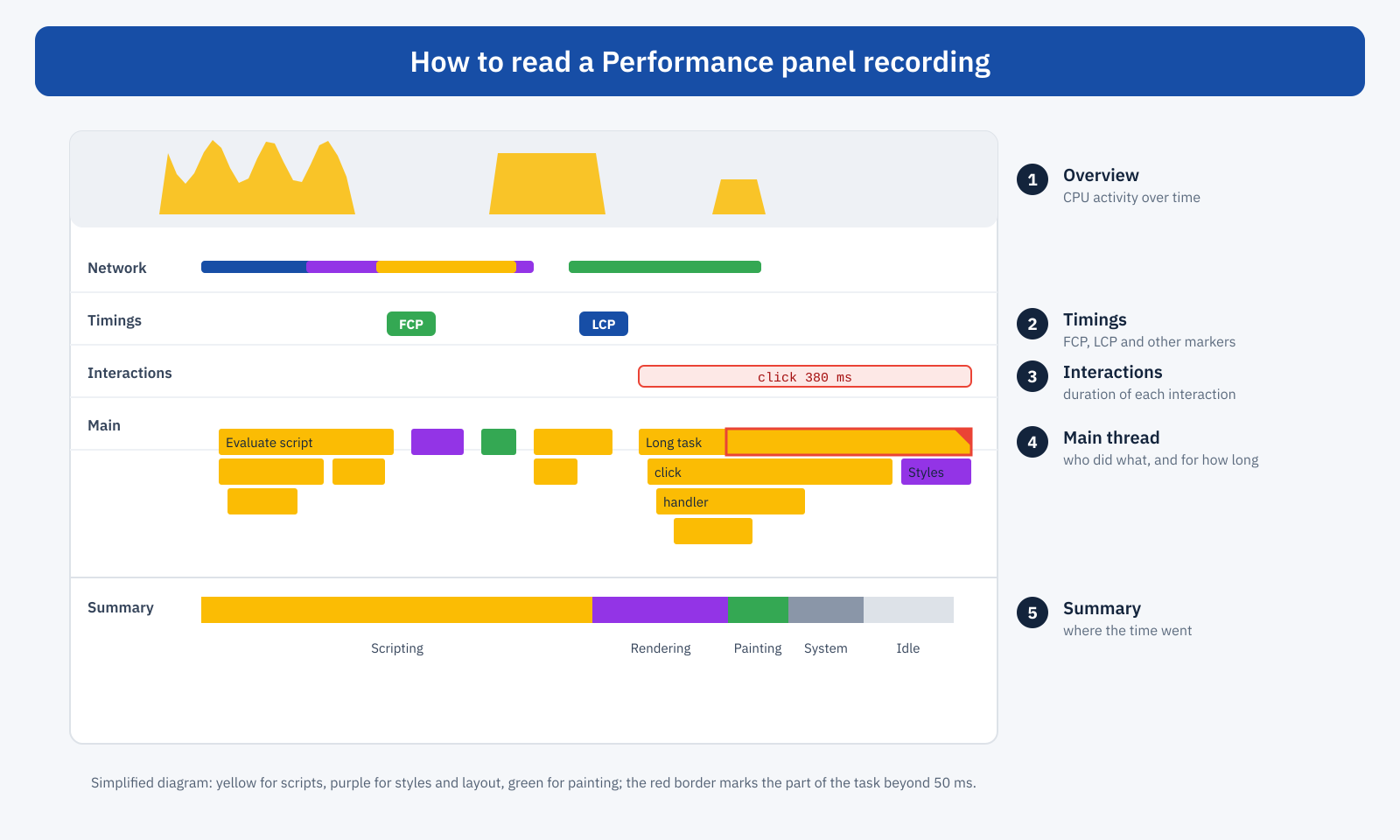
The overview, at the top, shows CPU activity over time, with the colors of the different activities, and a filmstrip of screenshots of the page. It helps you get your bearings: you can immediately see the moments when the browser is busy and you can select a range to zoom in on it.
The network and timings tracks show requests over time, like a compact waterfall, and the key moments of loading, including FCP and LCP. If you select the LCP marker, the panel indicates which element was considered the largest.
The interactions track shows every recorded click, tap or key press, with its overall duration. Slow interactions are highlighted.
The main thread is the heart of the recording. Work is represented as a flame chart: each rectangle is an activity, its width is its duration, and the rectangles underneath are the functions called by the one above. Colors indicate the type of work: yellow for script execution, purple for style and layout calculation, green for painting. Tasks that exceed 50 milliseconds, the long tasks, are marked with a red triangle and the excess portion is highlighted.
The bottom panel shows the details of whatever is selected. The summary tab splits time between the activity categories. The bottom-up tab lists the functions that consumed the most time, and lets you group them by domain or by product: it is the quickest way to see how much third-party scripts weigh. The call tree shows the same information starting from the top, and the event log lists activities in chronological order.
Automatic insights
Recent versions of the panel place next to the recording a column of insights, derived largely from Lighthouse audits but linked directly to the trace: the breakdown of LCP into its phases, render-blocking resources, discovery of the LCP element’s request, the causes of layout shifts, the impact of third parties, DOM size, forced layout recalculations. When you select an insight, the panel highlights the matching events in the recording. For beginners it is the best way into the recording: you start from a reported problem and see where it is.
Diagnosing LCP
For LCP the question is: where did the time go between the page request and the appearance of the largest element? The panel splits it into four phases. Time to first byte tells you how long the server took. Load delay is the time between the first byte and the start of the download of the LCP element’s resource, for example the main image: if it is long, the image was discovered late, because it was loaded by a script, referenced only in the CSS or slowed down by lazy loading. Load duration is the download time of the resource: if it is long, the resource is too heavy or the connection is slow. Render delay is the time between the end of the download and the moment the element appears: if it is long, the main thread was busy or rendering was blocked by stylesheets and scripts.
Knowing which phase dominates immediately points the way: the server and the cache in the first case, the priority and discovery of the resource in the second, the weight of the image in the third, CSS and JavaScript in the fourth.
Diagnosing CLS
For CLS the panel offers a track dedicated to layout shifts, grouped in the windows used to calculate the metric. When you select a shift, the panel indicates which elements moved and, when it can identify it, the likely cause: an image without dimensions, a web font that changes the text metrics, dynamically inserted content. The screenshots in the overview, viewed on either side of the shift, help you understand what happened on screen.
Diagnosing INP
For INP you record the slow interaction and select it in the interactions track. The panel splits it into three phases, each with a different remedy.
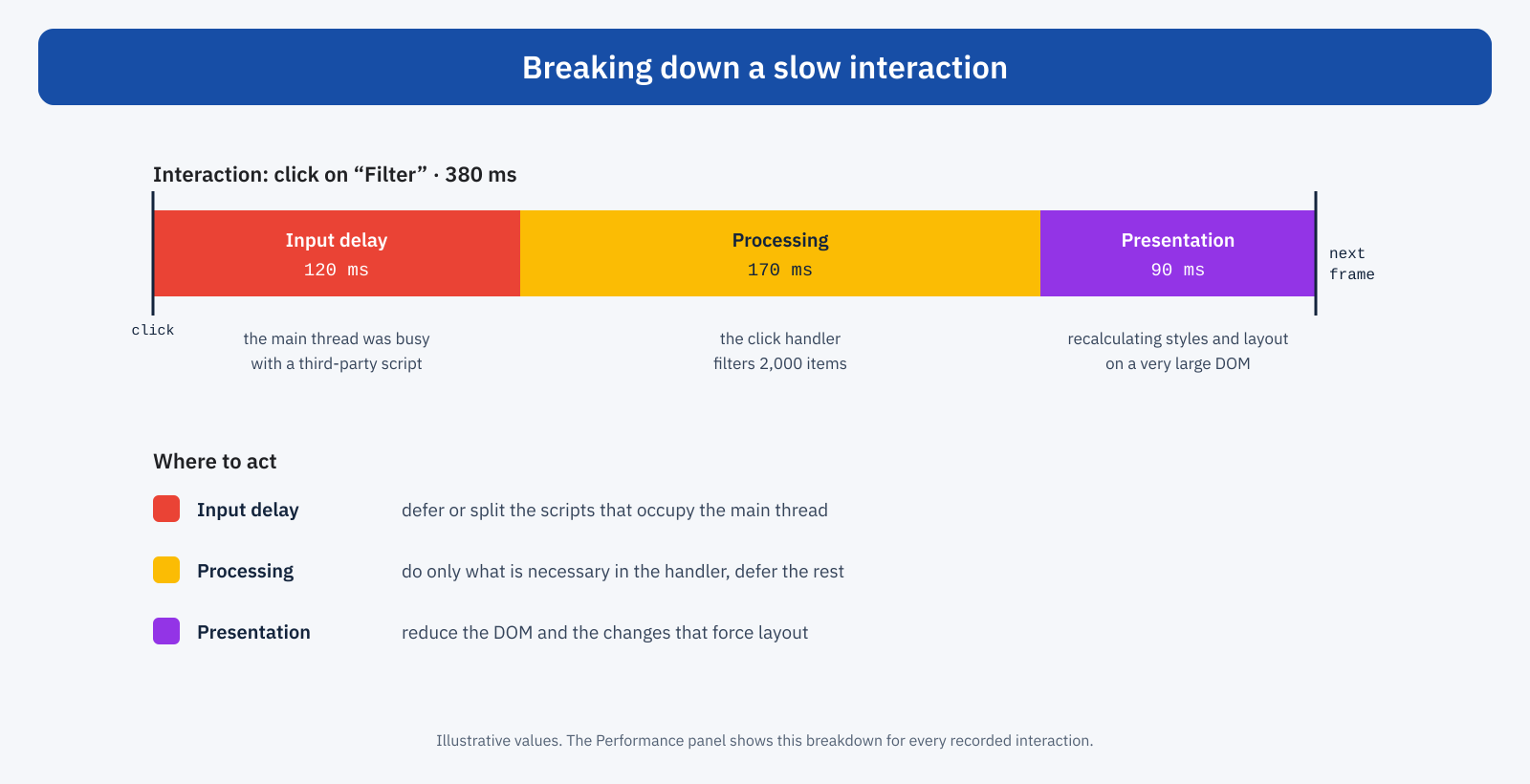
Input delay is the time the interaction waited for the main thread to become free. If it is long, just look at what the main thread was doing at the time of the click: often it is a third-party script, a timer or the completion of loading. Processing is the execution of the event handlers: the flame chart shows which functions took the most time, and if the code alternately reads and modifies the layout, the panel flags the forced recalculations. Presentation is the work needed to show the result: style calculation, layout, painting. If it is long, the page usually has a very large DOM or the change involves many elements, as seen in the articles on the cost of the DOM and on modern CSS.
The tools that work alongside it
The Performance panel does not work alone. The Network panel lets you examine individual requests in detail, along with headers, priorities and connection timings. The Rendering panel, reachable from the DevTools menu, highlights on screen the repainted areas and layout shifts while you use the page, and is useful for spotting expensive animations at a glance. The Coverage panel shows how much of the downloaded CSS and JavaScript is actually used. Lighthouse, built into the same DevTools, offers the overall picture with its audits, while the Performance panel lets you verify in detail what the audits flag: as explained in the article on the differences between PageSpeed Insights and Lighthouse, they are complementary tools, not alternatives.
The most common mistakes
- recording without throttling: on a fast computer everything looks quick, and you conclude the problem doesn’t exist;
- trusting a single recording: timings vary from one run to the next. To compare a before and an after you need several recordings, looking at the trend and not the single value;
- confusing lab and field: the recording shows what happens on your own computer, in simulated conditions. As explained in the piece on CrUX and lab data, it is a diagnostic tool: the final verdict belongs to real-user data;
- getting lost in the details: a recording contains thousands of events, and studying them all is pointless. It is best to start from the metric you want to improve, find the corresponding moment and trace back to the cause;
- forgetting extensions: an ad blocker or a password manager can add work your users don’t have, or remove scripts your users do run.
Saving and sharing
A recording can be saved as a file and reopened later, even on another computer. This is useful for documenting the state of a page before a change, comparing it with the state afterwards, and sharing a diagnosis with a developer or a supplier. Recent versions also let you add annotations directly on the recording, highlighting a range or linking two events, so that whoever receives it knows right away where to look. Keep in mind that a recording can contain URLs, parameters and screenshots of the page: if the page shows confidential data, share it with care.
A concrete example
A classified-ads site gets a poor INP warning on its search pages from the Search Console report. In the lab, without throttling, the filters seem to respond instantly. With the CPU slowed down four times and a recording made while applying a filter, the interaction lasts almost 400 milliseconds. The breakdown shows a significant input delay, caused by a chat script that runs a long task every few seconds, and a long processing phase, in which the click handler rebuilds the whole list of results. The tab that groups by product confirms that the chat script takes up a significant part of the main thread. The fixes are clear: load the chat only when the user opens it, and update only the list items that change. A second series of recordings confirms the improvement, and in the following weeks real-user data verifies it.
In short
The Performance panel shows what the browser does during loading and interactions, and it is the tool that turns a score into a diagnosis. To use it well you need realistic conditions, meaning a window without extensions and a throttled CPU, and a method: start from the metric to improve, find the corresponding moment in the recording, break it down into its phases and trace back to the cause in the main thread. The automatic insights and the live metrics view make getting started easier. The rest is practice: after a few recordings, the colored tracks become a readable map of where the time goes.
