Page builders, the visual builders such as Elementor, Divi, WPBakery or Beaver Builder, have made it possible for millions of people to create polished pages without writing code. You drag a section, choose the columns, insert a heading, an image, a button, adjust margins and animations, and see the result in real time. For agencies, freelancers and companies it is an enormous convenience, shortening development time and making clients independent.
This convenience has a cost, though, one that is not visible in the editor but is paid on every visit: more HTML, more CSS, more JavaScript, and above all a DOM, the structure of the page in memory, that is much larger and deeper than it needs to be. In this article we look at where this cost comes from, how it affects Core Web Vitals and what can be done without necessarily rebuilding the site from scratch.
Why builders produce more code
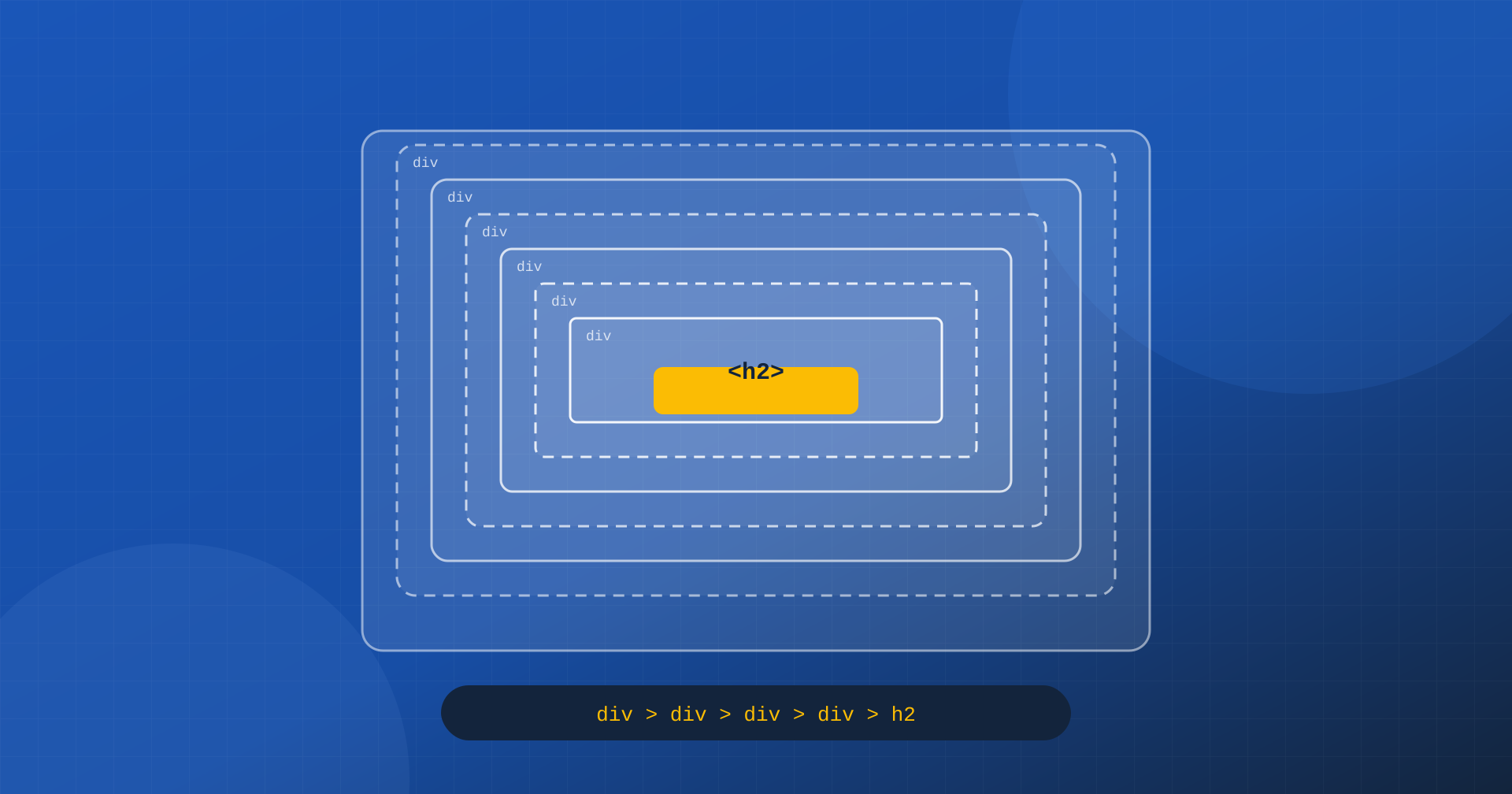
A visual builder has to let you configure every element independently: margins, backgrounds, borders, alignments, behavior on tablet and mobile, entrance animations, conditional visibility. To offer all these possibilities in a generic way, every element is wrapped in several containers, each handling one aspect: the section, the inner container, the column, the widget wrapper, the widget, the content container. A simple heading can thus sit six or seven levels below the section that contains it.
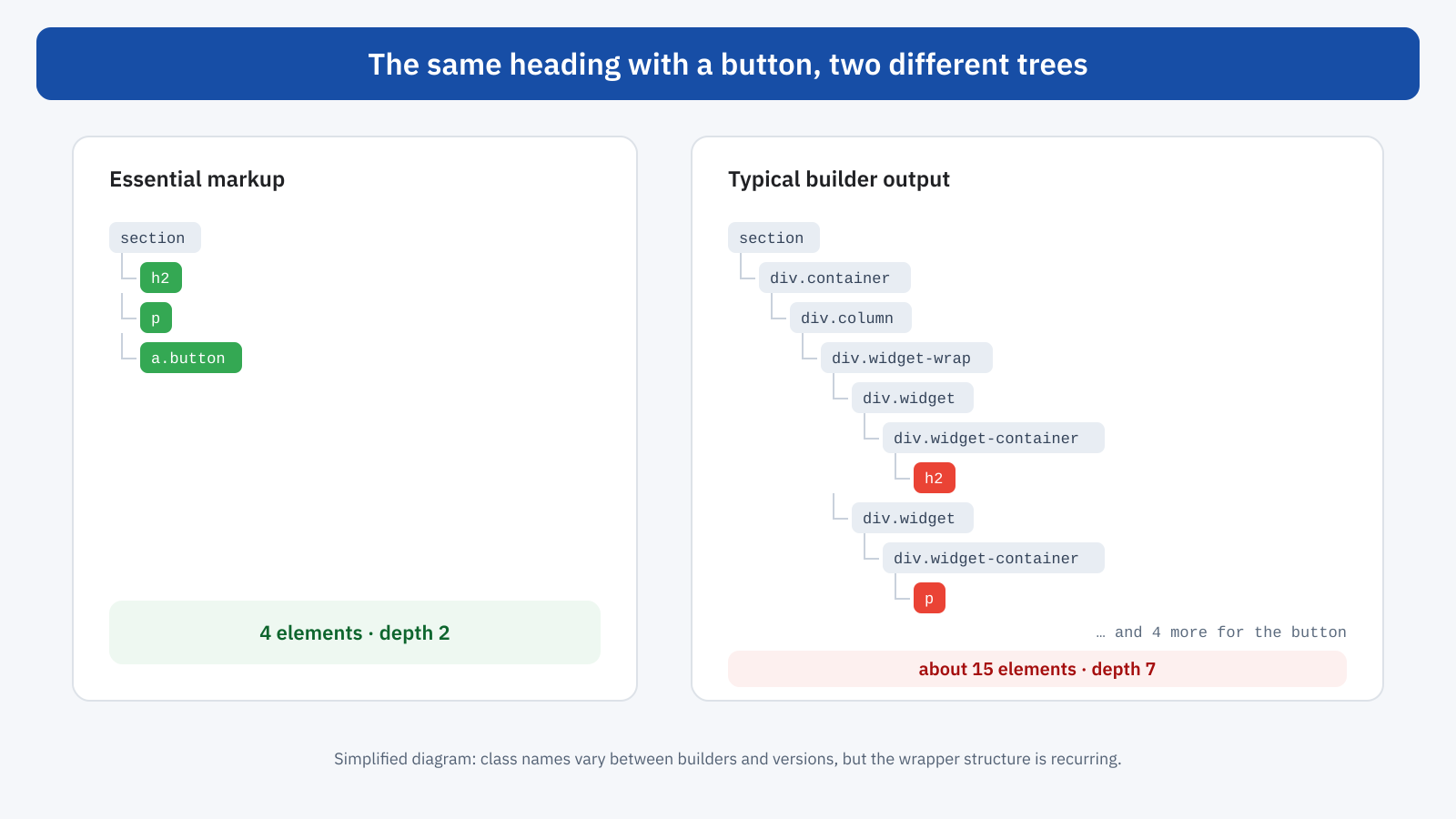
Multiplied across all the elements of a page, this pattern easily produces two or three thousand nodes, sometimes many more on home pages rich in sections, carousels and complex menus. To this are added other typical costs: stylesheets generated for each page or each element, JavaScript libraries for animations, sliders, lightboxes and tabs, complete icon collections loaded to use just a few, fonts added by individual widgets.
What a large DOM costs
The DOM is not just text to download. It is a structure the browser keeps in memory and has to recalculate every time something changes: which CSS rules apply to each element, where it sits and how big it is, what to repaint. The more nodes there are, and the more deeply nested, the heavier this work is. Lighthouse flags an excessive DOM beyond about 800 elements and treats it as critical beyond 1,400, not because there is a precise limit, but because beyond these sizes the costs become measurable on mid-range devices.
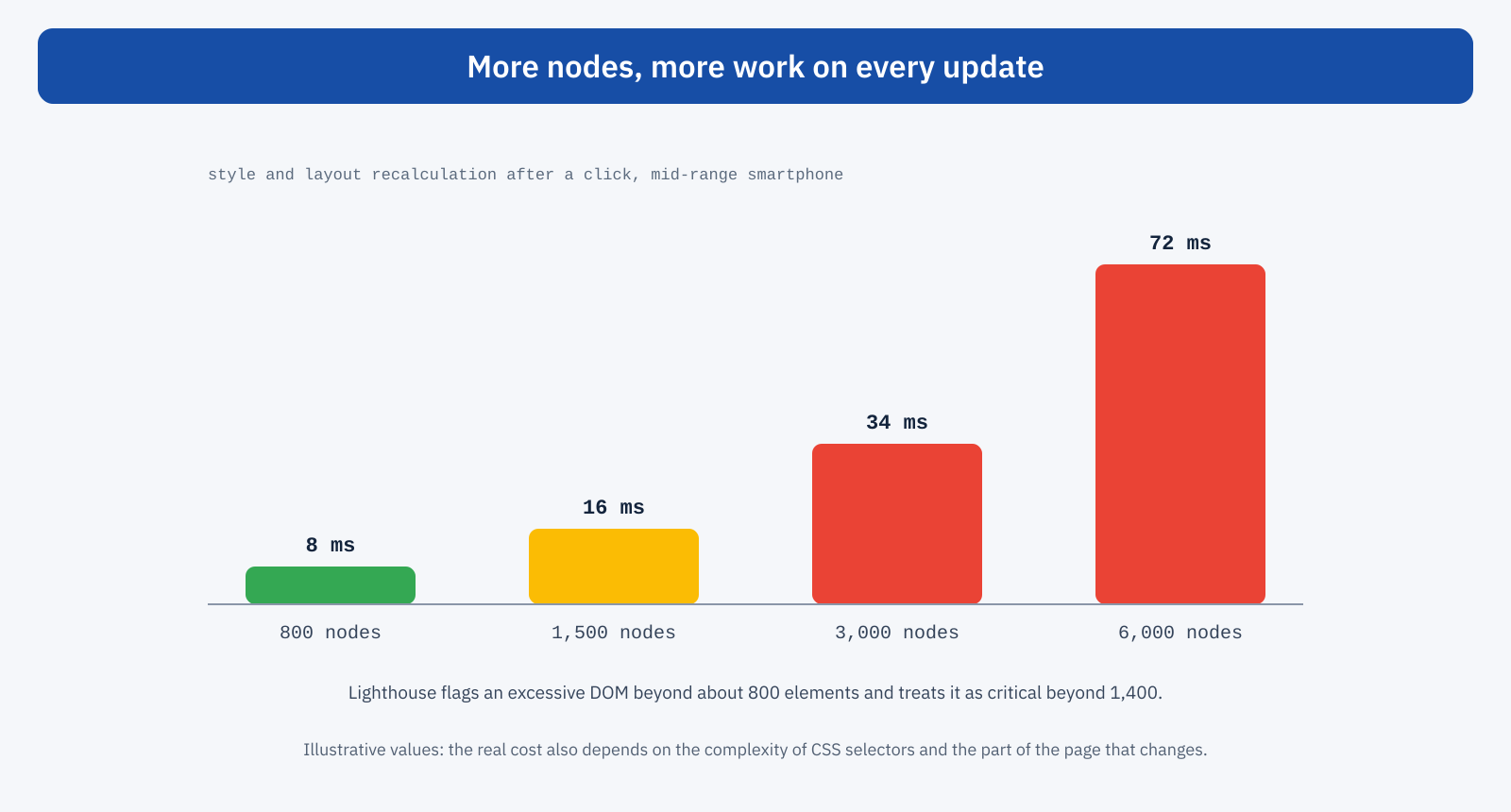
On Core Web Vitals the effects are spread across all three metrics. INP is the one that suffers most: every interaction that changes the page, such as opening a menu, switching tabs or expanding a frequently asked question, requires a style and layout recalculation whose cost grows with the DOM, and which adds to the JavaScript of the event handler. A trivial interaction can exceed 200 milliseconds on a budget smartphone simply because the page is huge.
LCP is affected by heavier HTML and CSS to download and parse, by JavaScript that occupies the main thread during loading, and by typical builder choices, such as the main image set as a section’s CSS background, which the browser discovers late, or inside a slider started by JavaScript. CLS, finally, can get worse because of sections that change height when scripts start, menus that rearrange themselves and fonts loaded by several widgets.
Builders’ performance settings
The main builders are aware of the problem and in recent years have introduced specific features, often switched off on sites created with earlier versions so as not to break compatibility. This is the first place to look, because a few clicks can bring concrete improvements.
Elementor, for example, has introduced an optimized DOM output that removes some wrappers, loading of scripts and styles only for the widgets actually used on the page, icons embedded as SVG instead of the complete icon font library and, above all, Flexbox-based containers, which replace the combination of sections and columns with a lighter structure. Divi offers dynamic CSS and JavaScript in its performance options, which load only what the page needs, along with critical CSS generation, and the builder’s new generation was also rewritten to reduce the weight of its output. Other builders offer similar options.
These options should be enabled with care, in a test environment, because some change the HTML structure and can break custom CSS written for the previous structure. But almost always the benefit is worth the check.
Good practice when building pages
A lot also depends on how pages are built. Two sites made with the same builder can have very different DOM sizes depending on the habits of whoever built them.
- Less nesting. Avoid sections inside sections and columns inside columns when a single container with the right settings achieves the same result. With Flexbox or Grid containers, one level is often enough where three used to be needed.
- One element for one piece of content. A heading and a paragraph can sit in a single text widget instead of two separate widgets, each with its own wrappers.
- No per-device duplicates. A widespread practice is to create two versions of a section, one for desktop and one for mobile, hiding the one that does not apply. Both stay in the DOM: you pay double the code to show half the content. It is better to have a single section with responsive settings.
- Global styles. Colors, typefaces and spacing defined globally produce less CSS than settings repeated element by element, and make the site more consistent.
- Restraint with effects and heavy widgets. Sliders, entrance animations, animated counters, parallax effects: each adds JavaScript and work for the browser. Use them where they bring value, not on every section.
- The main image as an image. For the opening section, a real image element with high priority instead of a CSS background, as explained in the article on lazy loading.
Header, menus and footer
One often neglected part of the DOM is the part that repeats on every page. Headers and footers built with the builder carry the same wrappers as the rest of the page, and menus are a special case. A mega menu with dozens of categories, images and descriptions can by itself account for several hundred nodes, present in the DOM even when the menu is closed. Many themes also add a second menu for mobile, a side panel that duplicates the whole navigation tree: same content, twice on the page.
Since these elements are present on every page of the site, lightening them has a multiplied effect. The solutions are simple to describe: a single menu that adapts to different screens instead of two separate versions, shallower submenus, rich mega menu content loaded only when the user opens the item, essential footers instead of full pages with widgets, maps and social feeds.
A typical example
Consider the home page of a company site built a few years ago with a builder: a large slider at the top, service sections with animated icons, counters, testimonials in a carousel, a contact form, a mega menu and a mobile version of several sections. The DOM exceeds four thousand elements, the page loads a dozen stylesheets and as many scripts, and mobile INP is in the needs improvement range, with spikes when the menu opens.
A targeted intervention, without changing builder, can go like this: enable the performance options and modern containers, replace the slider with a static image and a heading, remove the duplicate mobile sections, use a single responsive menu, drop counters and animations where they add no information. The DOM falls below fifteen hundred elements, the page weight halves and interactions become fast again. In most cases the site stays visually very similar, and often becomes clearer too.
Reducing what gets loaded
Besides the DOM, a site built with a page builder often loads resources that an individual page does not need: stylesheets for unused widgets, libraries for features present only on other pages, complete icon fonts. On top of the builder’s settings, optimization tools can remove unused CSS, generate critical CSS and defer non-essential JavaScript until the first interaction. These are effective measures, but they need careful checking precisely on sites built with builders, where many elements depend on classes and scripts that only appear in certain states: open menus, active tabs, modal windows.
How to measure
The number of elements on a page can be read in Lighthouse, in the warning about DOM size, which also shows the maximum depth and the element with the most children. Alternatively, one line in the browser console is enough:
document.querySelectorAll( '*' ).length; // total number of elementsTo understand the effect on interactions, the Performance panel in DevTools, with CPU throttling on, shows for each click the time spent on style and layout recalculation, highlighted in purple. If these phases take tens of milliseconds to open a simple menu, the DOM size is very likely part of the problem. The most useful comparison is between page templates: home pages and promotional pages are often much heavier than articles and product pages, and deserve priority.
Optimize or rebuild?
There often comes a moment when you wonder whether it is worth continuing to optimize a site built with a page builder or whether it is better to rebuild it with a lightweight theme or with WordPress’s native block editor, which produces much leaner markup. There is no single answer. If the performance settings and a few interventions on the main pages bring Core Web Vitals into the good range, rebuilding is rarely justified on performance grounds alone. If instead the site stays slow despite the interventions, the builder is outdated or maintenance has become complex, a rebuild can be the chance to solve several problems at once.
The decision should be made with data: field Core Web Vitals by page template, weight of the main pages, estimated cost of the interventions, how often content is edited by non-technical people. A page builder that saves hours of work every week has a value that should go on the scale, just like the conversions lost to a slow site.
In short
Page builders make it easy to create polished pages, but they produce a larger, deeper DOM, more CSS and more JavaScript than a page would require. The cost shows up mostly in INP, because every page update becomes heavier, but also in LCP and CLS. Lighthouse flags the problem beyond about 800 elements, and many pages built with a builder comfortably exceed this threshold.
Before thinking about rebuilding, it is worth enabling the builder’s performance features, reducing nesting, removing per-device duplicate sections, limiting heavy effects and widgets and loading only the necessary resources. With these precautions many sites reach the good range without giving up the tool they were built with; for the others, the data will say whether it is time to change.
