Of all performance analysis tools, the network request waterfall chart, the so-called waterfall, is probably the richest in information and the least read. Scores and metrics tell you whether a page is slow; the waterfall tells you why. It shows every resource downloaded, when the browser discovered it, how long it waited, how long the server took to respond, how long the download lasted and in what order it all happened. Whoever learns to read it finds, in a few minutes, problems that no automated report describes with the same clarity.
In this article we look at where to find the waterfall, how to read each part of it, which recurring patterns point to a problem and how to use it to check that a change has really worked. The examples refer to the Network panel of Chrome DevTools and to WebPageTest, the two most widely used tools, but the concepts apply to any tool that shows requests over time.
Where to find it
In the browser, the Network panel of Chrome DevTools shows the list of requests with a Waterfall column on the right. It is best to reload the page with the cache disabled, using the dedicated checkbox, and with network and CPU throttling that simulates a mobile device: on a fast computer with a fiber connection many problems simply do not show. The Performance panel offers a network track aligned with the main thread’s, useful for understanding what happens in the browser while resources arrive.
WebPageTest runs the test on real devices and connections in several locations and produces a very detailed waterfall, with the phases of each request color-coded, the main events marked by vertical lines, CPU and bandwidth usage below the chart and a filmstrip showing the page as it is built. It is the reference tool for in-depth analysis and for comparing different versions of a page. PageSpeed Insights, too, in its diagnostics section, shows the network dependency tree, a view that highlights critical request chains.
The anatomy of the chart
Each row of the waterfall is a request, and the horizontal axis is time from the start of the navigation. The position where the bar starts indicates when the browser started the request, that is when it discovered the resource and decided to download it. The length indicates how long it lasted. The color, depending on the tool, indicates the type of resource, the phase of the request or both.
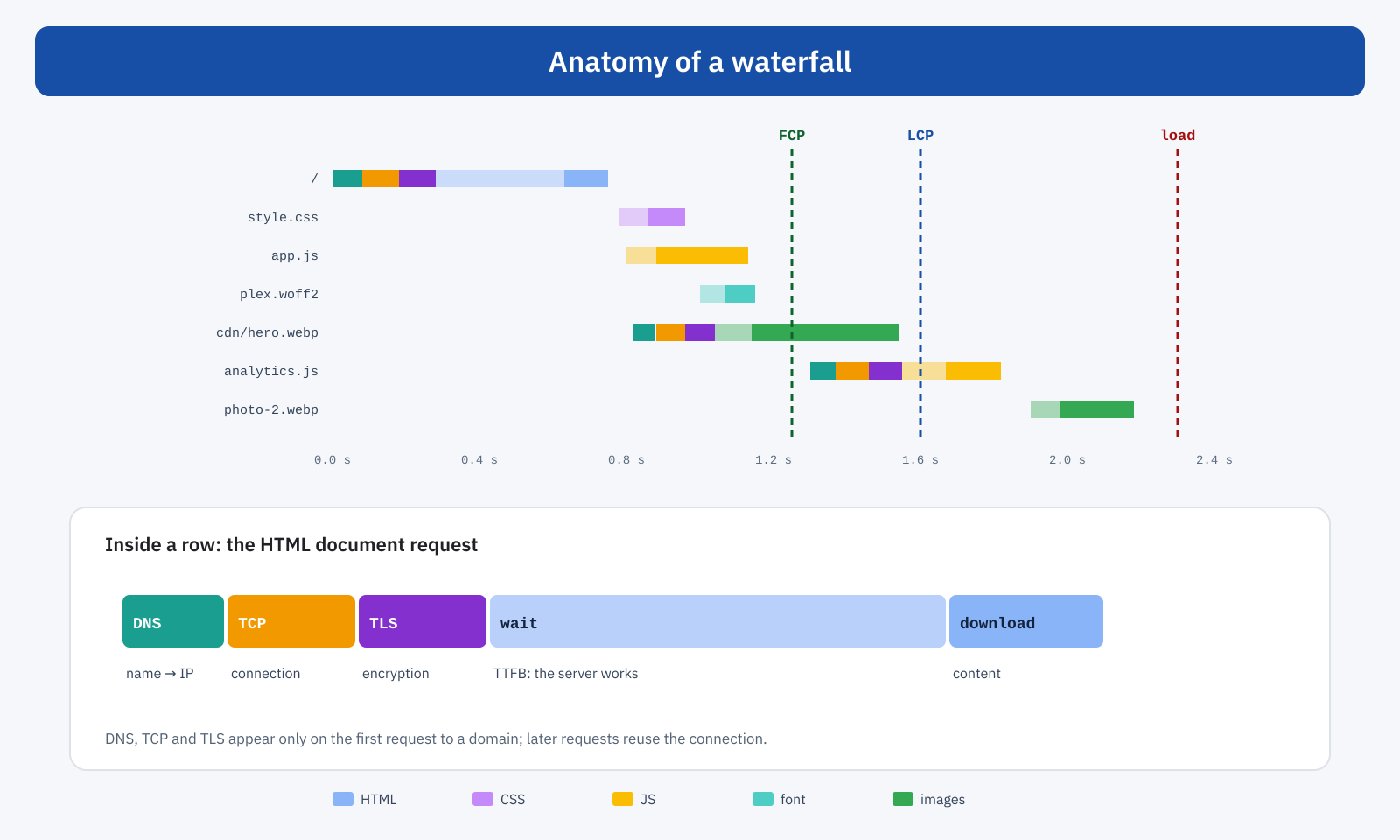
Inside each bar the phases of the request can be told apart. The first three appear only when the browser opens a new connection to a domain: DNS resolution, which translates the name into an address; the TCP connection; the TLS negotiation for encryption. Then comes the wait, the time between sending the request and the arrival of the first byte of the response, which corresponds to the server’s work and the round-trip time on the network. Finally the download proper, whose duration depends on the size of the resource and the available bandwidth. Before all this there can be a queueing time, when the browser has discovered the resource but has not requested it yet, for example because it has low priority or because there are too many simultaneous requests.
The vertical lines mark page events: First Contentful Paint, when the first content appears; Largest Contentful Paint; the DOMContentLoaded event, when the document has been parsed and deferred scripts have run; the load event, when all initial resources have been downloaded. The position of requests relative to these lines says a lot: everything before the first paint is, potentially, something the user waits for in front of a blank screen.
A reading method in eight questions
Faced with a waterfall of dozens or hundreds of requests it is easy to get lost. A method helps: always ask the same questions, in the same order.
1. How long does the first request take?
The first row is the HTML document, and everything else depends on it. If its wait phase lasts half a second or more, the main problem is the server: the page is not served from cache, the application is slow or the server is far away. This is the realm of TTFB and page caching, and no front-end optimization can recover that time. If one or more redirects appear before the document, each adds a whole round trip of request and response: they should be eliminated, for example by pointing links directly at the final address.
2. What blocks the first paint?
Render-blocking resources, that is stylesheets in the head and synchronous scripts, must be downloaded before the browser can paint anything. WebPageTest flags them with a dedicated icon. It is worth counting them and looking at their duration: the more there are and the heavier they are, the later the first paint arrives. The solutions are those covered in the articles on critical CSS and on deferring scripts.
3. When does the LCP resource start?
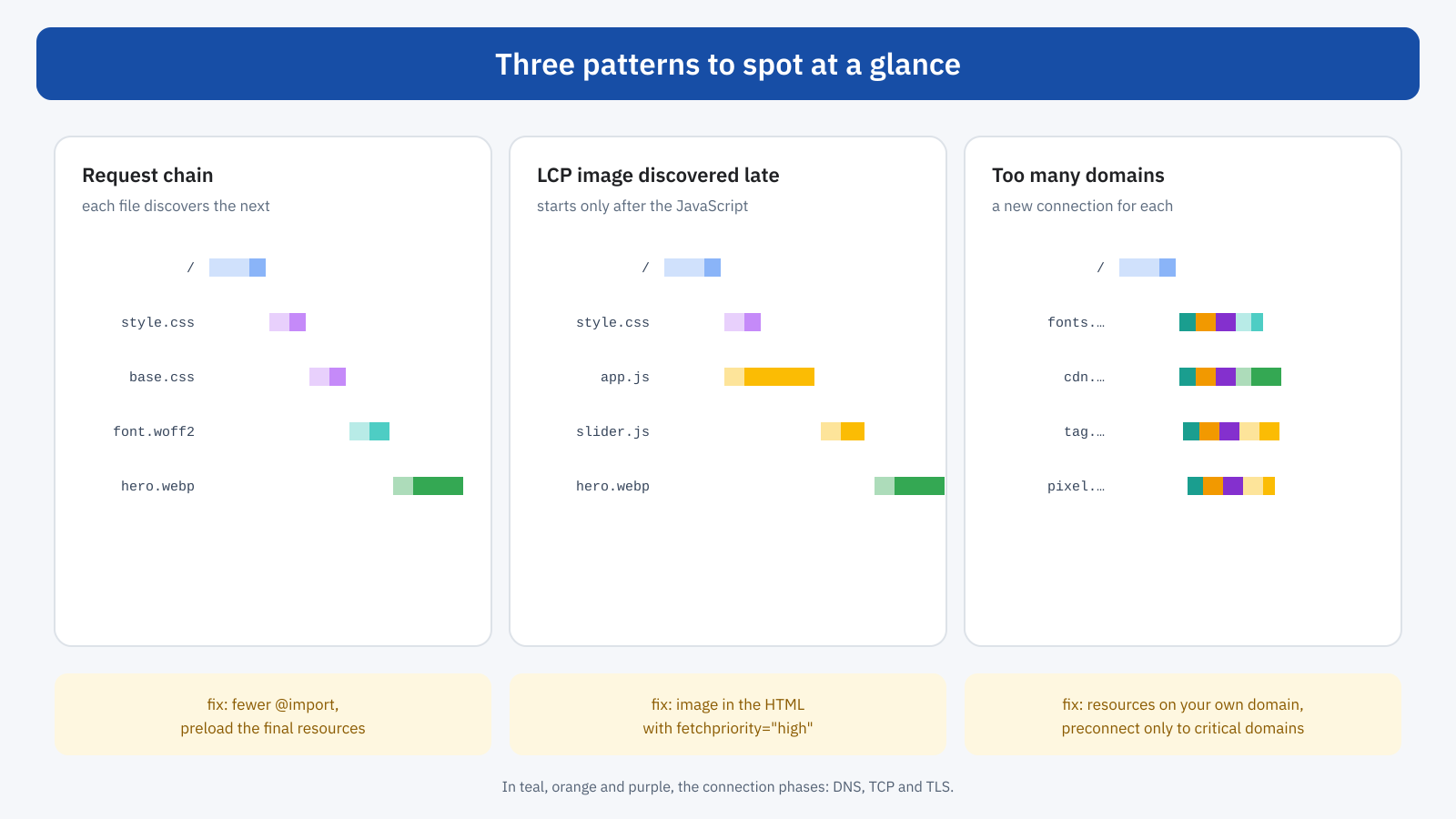
This is the most important question for LCP. Find the resource of the LCP element, usually an image, and look at when its bar starts relative to the document. Ideally it should start right after the HTML arrives, in parallel with the stylesheets. If it starts much later, after the CSS, after the scripts or after other images, there is a discovery or priority problem: the image is inserted by JavaScript, it is a background defined in the CSS, it is lazy-loaded or it has low priority. The solutions are in the article on preload, preconnect and fetchpriority.
4. Are there chains?
A chain of requests can be recognized by a staircase shape: a resource that starts only when the previous one has finished, because the previous one is what requests it. The stylesheet that imports another stylesheet, which declares a font; the script that loads another script, which loads an image. Every step adds a whole network round trip. Chains should be shortened, by moving the final resources higher up in the document or bringing them forward with a preload.
5. How many domains and how many connections?
Every different domain requires a new connection, visible in the waterfall as the colored sequence of DNS, TCP and TLS at the start of the bar. On a mobile network each opening can cost 100 to 300 milliseconds. If the waterfall shows many of these sequences, especially before the first paint, it is worth asking which domains are really necessary: fonts from external services, libraries from public CDNs, third-party scripts. Hosting critical resources on your own domain eliminates these openings; for indispensable domains, a preconnect brings them forward.
6. Are there gaps?
Sometimes the waterfall shows intervals in which the network is idle: no request in progress, and yet the page is not ready. Almost always this means the bottleneck is not the network but the processor: the browser is running JavaScript, calculating styles or painting, and can neither discover nor request new resources. In WebPageTest the CPU usage graph below the waterfall confirms it at a glance; in DevTools, the Performance panel shows which tasks occupy the main thread at that moment.
7. Which resources are too big?
Bars with a long download phase indicate heavy resources. Sorting the Network panel by size quickly turns up unoptimized images, enormous JavaScript bundles, full fonts that have not been subsetted, autoplaying videos. It is also worth checking the column that compares transferred size with actual size: if they are equal for a text file, compression is missing.
8. What happens afterwards?
What happens after the load event deserves a look too. Analytics scripts, pixels, chat, heatmaps, periodic requests: they do not delay the first load, but they take bandwidth and processor time just when the user starts interacting, with effects on INP. A long tail of third-party requests after loading is the sign that it is worth reviewing your third-party scripts.
Columns that help
In the DevTools Network panel, some columns that are not visible by default make reading much more effective. They are added with a right click on the table header.
- Priority: the priority assigned by the browser, useful for checking that the LCP image and critical CSS have high priority.
- Initiator: who requested the resource, the HTML, a stylesheet or a script, indispensable for reconstructing chains.
- Protocol: HTTP/1.1, HTTP/2 or HTTP/3, to check that connections use modern protocols.
- Size with transferred and actual size, and response headers such as
Content-EncodingandCache-Control.
Hovering over a bar in the waterfall, DevTools shows the exact breakdown of phases with durations, and in the Timing tab of the single request the same data appears in detailed form. In WebPageTest, clicking a row opens the full detail of the request and response, with all the headers.
First view and repeat view
The waterfall of a first view, with an empty cache, and that of a repeat view tell different stories. WebPageTest produces both. In the repeat view many resources should disappear or appear as responses from the browser cache: if they are downloaded again, the cache headers are not configured correctly. Requests that appear with a 304 response indicate resources revalidated with the server, a useful mechanism that still costs a network round trip, as explained in the article on HTTP 304 Not Modified.
The waterfall as a verification tool
Besides diagnosis, the waterfall is the best way to verify a change. A preload should move the resource it applies to to the left; a fetchpriority should change its priority; removing a domain should make a connection sequence disappear; critical CSS should bring the first-paint line forward. Comparing waterfalls before and after, under the same test conditions, shows whether the change had the expected effect and whether it had side effects, such as a critical resource pushed to the right because another one took its bandwidth.
WebPageTest lets you compare two tests side by side, with waterfalls and filmstrips aligned. It is an effective tool for communication too: the filmstrip of a page that builds in one second next to that of the same page that used to take four seconds is more convincing than any number.
The limits
The waterfall describes a single load, under precise conditions: one device, one network, one location, one cache state. It is a lab tool, valuable for understanding causes, but it does not represent the variety of real experiences. A problem the waterfall does not show may still exist for some users, and vice versa. For this reason it should always be used together with field data, as explained in the article on why CrUX and lab tests are both needed: real-user data tells you where to look, the waterfall tells you what is happening.
In short
The waterfall shows every request of the page over time, with its phases: opening the connection, waiting for the server, download. Read with a method, it answers the questions that matter: how long the server takes, what blocks the first paint, when the LCP resource starts, where the chains are, how many domains are contacted, where the network is idle because the processor is working, which resources are too big and what happens after loading.
The right columns in DevTools, the comparison between first view and repeat view in WebPageTest and the before-and-after comparison of every change make it the everyday working tool of anyone dealing with performance. Learning to read it takes a few hours; the time it saves in later analyses is far more.
