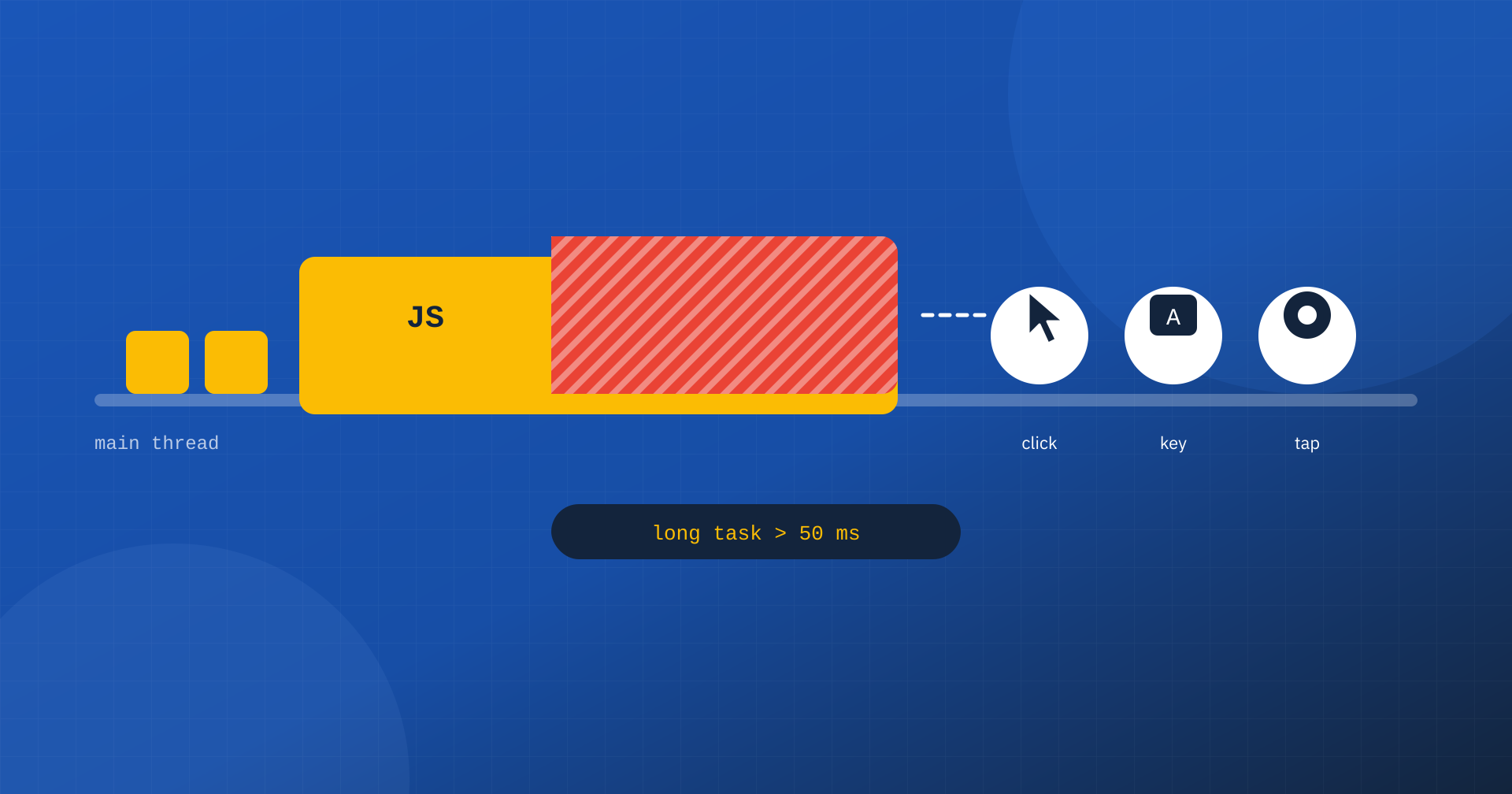
Anyone working on web performance soon runs into three terms that come back in every report: main thread, long task and Total Blocking Time. Lighthouse tells you to “reduce main-thread work”, PageSpeed Insights shows a TBT in red, DevTools highlights yellow blocks with a small red triangle. These concepts seem reserved for front-end developers, but they explain one of the most common and most underestimated problems of modern sites: a page that looks loaded but does not respond.
In this article we try to explain them simply, starting from how the browser works, and moving on to what the metrics measure, how to find the culprits and how to intervene.
The main thread: a single worker for almost everything
To show a page, the browser has to do many different jobs: read the HTML and build the DOM, apply stylesheets, calculate the position and size of every element, paint, run JavaScript and respond to clicks, taps and keystrokes. Some activities, such as downloading resources or decoding images, happen in parallel on other threads. But most of the page-related work, and in particular all of the page’s JavaScript and event handling, happens on a single thread: the main thread.
The simplest way to picture it is a single worker carrying out one job at a time, from a queue. Each job, called a task, is completed before moving on to the next: the worker cannot interrupt one halfway to deal with something more urgent. If the user taps a button while the main thread is running a script, the tap goes into the queue and will be handled only when the script has finished. In the meantime, the page looks frozen: no visual reaction, no change, sometimes not even scrolling if it depends on JavaScript event handlers.
What a long task is
A long task is a task that occupies the main thread for more than 50 milliseconds. The threshold is not arbitrary: it comes from the RAIL model proposed by Google, according to which a response within 100 milliseconds is perceived as instant. If every task lasts at most 50 milliseconds, an interaction that arrives at the worst moment waits at most 50 milliseconds, and another 50 milliseconds remain to process it and paint the result. Beyond this threshold, the probability that the user perceives a delay grows quickly.
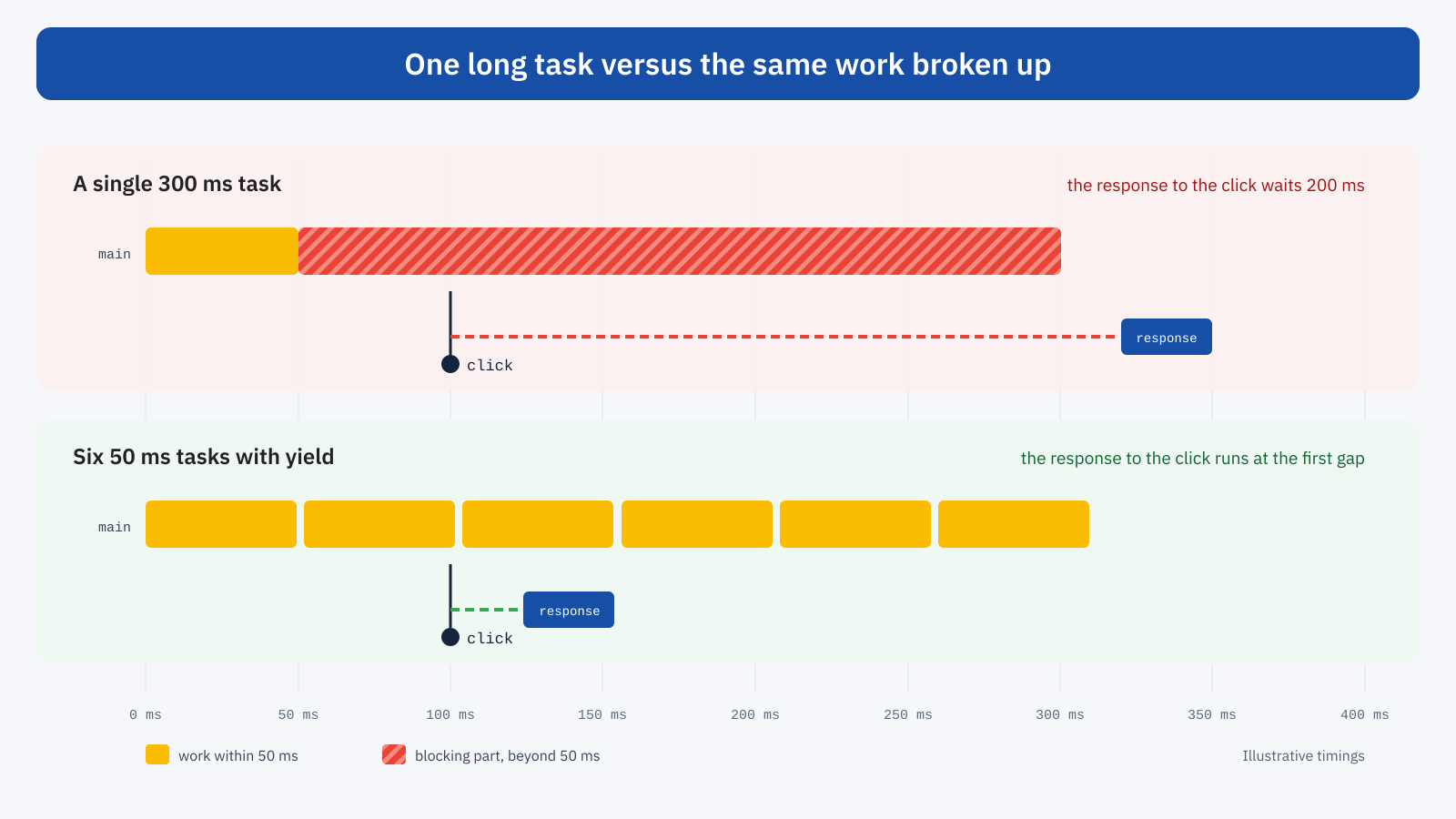
The problem is not the total amount of work, but how it is distributed. Three hundred milliseconds of JavaScript run in a single block leave the user waiting for the whole duration; the same three hundred milliseconds split into six blocks of fifty, with gaps between them, let the browser slot the response to a click into the first available gap.
Total Blocking Time
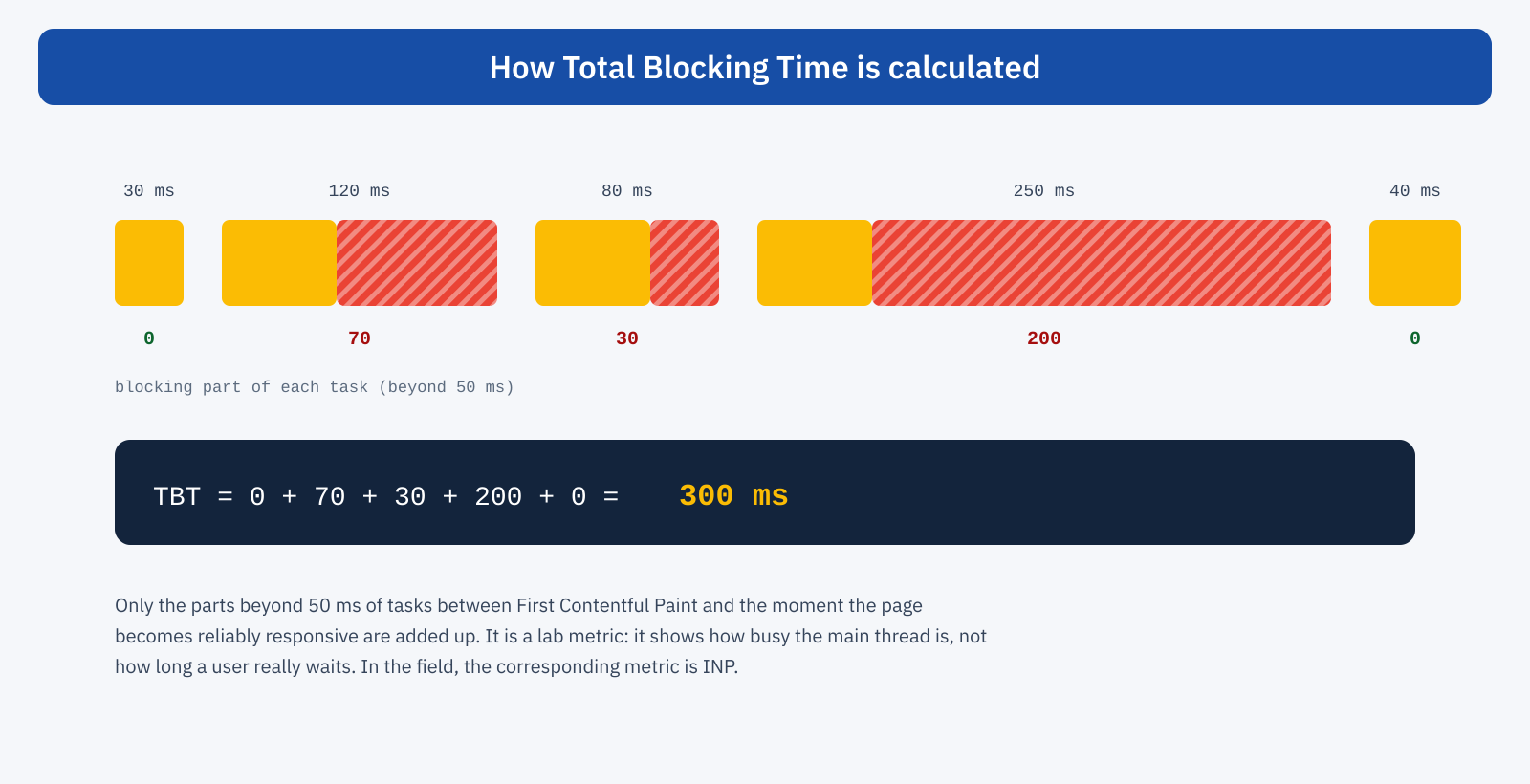
Total Blocking Time, or TBT, is the metric Lighthouse uses to measure how blocked the main thread is during loading. The calculation is simple: for every long task that happens between First Contentful Paint and the moment the page becomes reliably responsive, take the part that exceeds 50 milliseconds, and add up all these parts. A 120-millisecond task contributes 70, a 40-millisecond one contributes nothing.
In the Lighthouse score, TBT carries significant weight, the highest among the metrics considered, and it is often the main reason a site gets a low mobile score. For a desktop site a TBT under 200 milliseconds is considered good; on mobile, where Lighthouse simulates a slower processor, reaching it is much more demanding.
It is worth remembering what TBT is and what it is not, though. It is a lab metric: it measures how busy the main thread is during a simulated load, with no one interacting with the page. It does not measure how long a user really waits, because there are no users in the test. It is an indicator, useful because it correlates with real responsiveness, but it is not a Core Web Vital and Google does not use it to evaluate pages. The corresponding field metric is INP, which measures the response time to real interactions by real users, as explained in the article on the differences between PageSpeed Insights and Lighthouse.
How long tasks hit Core Web Vitals
The most direct link is with INP. The response time to an interaction has three parts: the delay before the event handler can start, the handler’s execution time and the time to paint the result. Long tasks affect all three. A long task in progress at the moment of the click lengthens the initial delay; an event handler that does too much work is itself a long task; a DOM update that requires heavy style and layout recalculations delays the paint.
But LCP suffers too. If the main thread is busy running scripts when the main image or text is ready, the browser cannot paint it until the thread is free. On pages with a lot of synchronous JavaScript in the head, you sometimes see an LCP arriving hundreds of milliseconds after the image has downloaded, simply because the main thread was busy elsewhere.
Where long tasks come from
- Script evaluation. Every JavaScript file has to be parsed, compiled and executed. Large bundles, with whole libraries loaded to use one function, produce long tasks at load time.
- Third-party scripts. Analytics, pixels, chat, A/B testing and widgets often do heavy work right during loading, as we saw when discussing third-party scripts.
- Framework hydration. On sites built with JavaScript frameworks, the code that makes a server-rendered page interactive can occupy the main thread for hundreds of milliseconds.
- Style and layout recalculations. A very large DOM, or code that alternately reads and changes element dimensions, forces the browser to recalculate layout several times in the same task.
- Data processing. Parsing large JSON, sorting, filtering long lists run inside an event handler.
How to find them
The Performance panel in Chrome DevTools is the main tool. When you record a load or an interaction, the main thread trace shows each task as a block; long tasks are flagged with a red triangle and a hatched part corresponding to the portion beyond 50 milliseconds. Expanding a block shows the call chain and, above all, the file and function responsible. It is best to record with CPU throttling on, to get closer to the conditions of a mid-range smartphone.
On real users, Chrome offers the Long Animation Frames API, which reports frames where the browser took more than 50 milliseconds to update the screen and, unlike the earlier Long Tasks API, indicates which scripts contributed, with file, function and duration. It is the most useful tool for finding out which scripts slow down interactions on visitors’ devices:
new PerformanceObserver( ( list ) => {
	for ( const frame of list.getEntries() ) {
		for ( const script of frame.scripts ) {
			// File, function and duration of each script involved
			console.log( script.sourceURL, script.sourceFunctionName, script.duration );
		}
	}
} ).observe( { type: 'long-animation-frame', buffered: true } );
How to intervene
Run less code
The first intervention is always the most effective: remove code that is not needed. Scripts loaded on every page but used only on some, libraries that could be replaced with a few lines of native code, forgotten features. The second is to postpone code that is not needed right away: non-critical scripts loaded with defer, widgets started only when the user interacts, as in the technique of delaying JavaScript until the first click.
Break up long work
When the work is necessary, it can be split into smaller parts, periodically handing control back to the browser, an operation called yielding. Between one part and the next the browser can handle queued input and update the screen. Recent versions of Chrome have a dedicated function, scheduler.yield(), which hands back control and then resumes the work with priority, ahead of other less important tasks; in other browsers you can fall back on setTimeout:
function cediIlPasso() {
	if ( globalThis.scheduler?.yield ) {
		return scheduler.yield();
	}
	return new Promise( ( resolve ) => setTimeout( resolve, 0 ) );
}

async function elaboraTutto( elementi ) {
	for ( const elemento of elementi ) {
		elabora( elemento );
		await cediIlPasso(); // lets the browser respond between one item and the next
	}
}
In event handlers, the principle is to give immediate visual feedback and postpone the rest. If a click has to update the interface, send an analytics event and save data, it is best to update the interface first, yield to let the browser paint, and only then run the rest.
Move work elsewhere
For heavy processing that does not touch the DOM, such as calculations, data analysis or compression, Web Workers let you run JavaScript on a separate thread, leaving the main thread free. For non-urgent work, requestIdleCallback runs it when the browser has nothing else to do. And for rendering, reducing the size of the DOM and using properties such as content-visibility lowers the cost of every style and layout recalculation.
Why mobile is worse
The same script can take 40 milliseconds on a recent computer and 200 on a budget smartphone. The difference in power between the processors of the most widespread devices and those used by developers is enormous, and JavaScript is one of the activities that suffers most from it. This is why a site that seems perfectly responsive in the office can have a poor INP in field data: the long tasks that do not exist on the developer’s computer show up on mid-range phones, which are the majority of real visitors.
It is also the reason Lighthouse, in mobile mode, simulates a slowed-down processor, and why mobile TBT is almost always much higher than desktop TBT. When testing a site by hand, it is best to turn on CPU throttling in DevTools, four or six times, or use a real mid-range smartphone: it is the quickest way to see the page as most users see it.
The WordPress case
On WordPress sites, long tasks rarely come from core, and much more often from what gets added to it: themes and page builders that load jQuery and dozens of scripts on every page, sliders and animations, statistics plugins, forms, cookie and marketing tools. The Performance panel, with file names in the traces, usually shows quickly which plugins are responsible. From there the paths are the same: remove, limit to the pages where they are needed, defer.
In short
The main thread is the single worker that runs JavaScript, calculates layout, paints and responds to users. A long task is a job that keeps it busy for more than 50 milliseconds, during which the page cannot react. Total Blocking Time adds up these waits during loading in the lab and is a good indicator, but the metric that matters in the field is INP.
To improve, follow a precise order: run less code, postpone what is not urgent, break up long work by yielding to the browser, move heavy processing off the main thread. DevTools and the Long Animation Frames API show where to intervene. You do not need a site without JavaScript: you need JavaScript that always leaves the browser a moment to respond to whoever is using the page.
