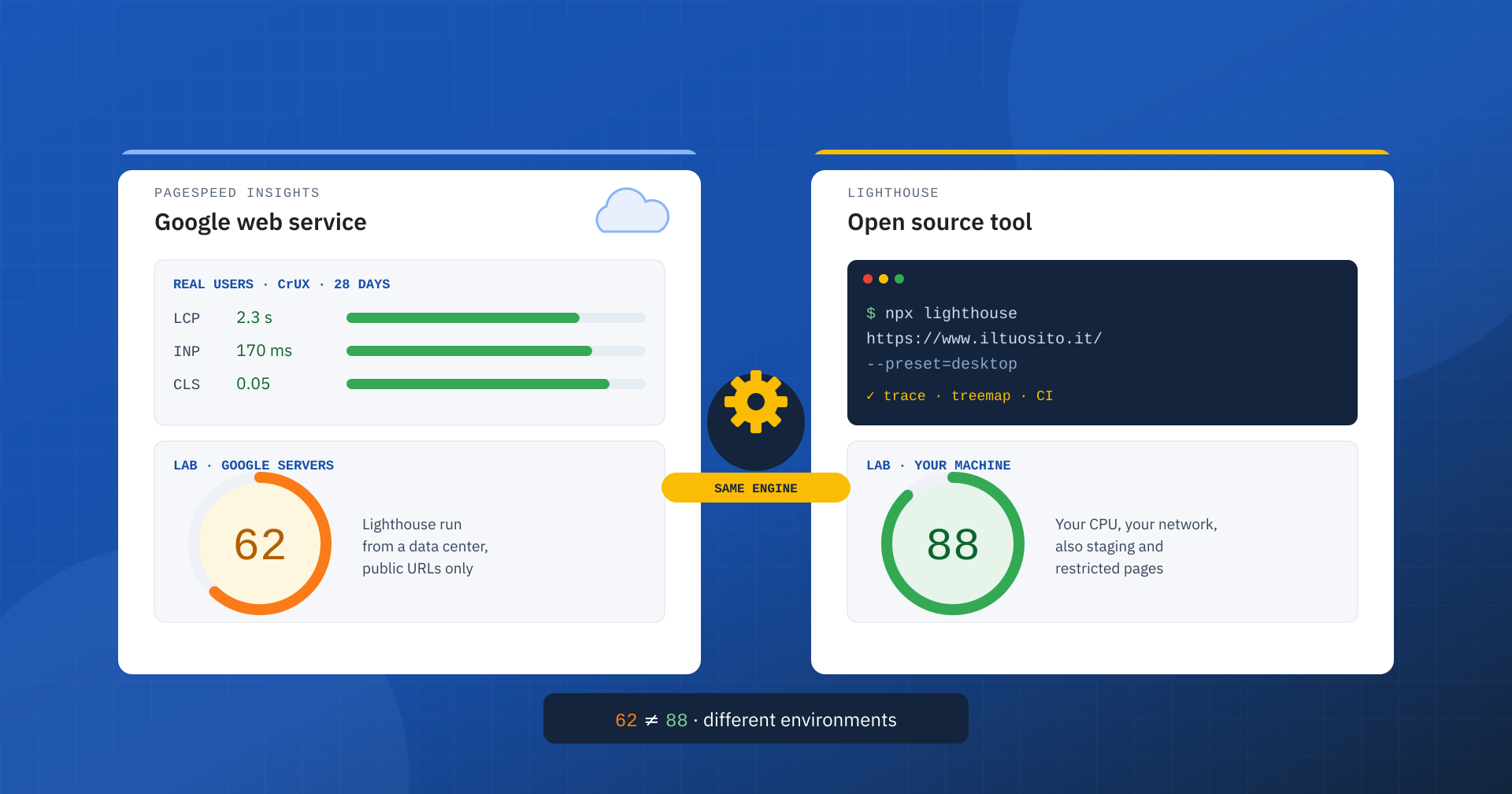
It happens all the time: the client opens PageSpeed Insights and sees 62, the developer runs Lighthouse from Chrome DevTools and gets 88, and the next meeting turns into an argument about which of the two numbers is “the real one”. The short answer is that neither is wrong. The full answer requires understanding what these tools are, what they have in common and why, even though they use the same engine, they often arrive at different results.
Lighthouse: the analysis engine
Lighthouse is an open source tool developed by Google that loads a page in a controlled Chrome browser, records its behavior and produces a report with four categories: Performance, Accessibility, Best Practices and SEO. It is a lab analysis: a single visit, under simulated conditions, with no real user involved.
You can run it in many ways: from the Lighthouse panel in Chrome DevTools, from the command line with Node.js, as a module inside other programs and in continuous integration pipelines with Lighthouse CI. In every case the test runs on the machine that launches it, with its processor, its connection and, in the case of DevTools, its browser profile.
# Default mobile profile, Performance category only
npx lighthouse https://www.iltuosito.it/ --only-categories=performance --view

# Desktop profile, JSON report for automated comparisons
npx lighthouse https://www.iltuosito.it/ --preset=desktop --output=json --output-path=report.json
PageSpeed Insights: a service that uses Lighthouse
PageSpeed Insights, often shortened to PSI, is a web service from Google. When we enter an address, it runs Lighthouse on its own servers and shows the result in the “Diagnose performance issues” section. But it adds something Lighthouse alone cannot offer: real-user data from the Chrome UX Report, for the analyzed URL and for the whole origin, in the “Discover what your real users are experiencing” section.
PageSpeed Insights is therefore two tools in one: a Lighthouse run in an environment managed by Google and a window onto the field data of the last 28 days. It is also available through an API, which is useful for monitoring many pages automatically:
curl "https://www.googleapis.com/pagespeedonline/v5/runPagespeed?url=https://www.iltuosito.it/&strategy=mobile&category=performance"What they have in common
The lab part is the same. Both measure First Contentful Paint, Largest Contentful Paint, Total Blocking Time, Cumulative Layout Shift and Speed Index, and both calculate the Performance score with the same formula: in current versions of Lighthouse, Total Blocking Time weighs 30%, LCP and CLS 25% each, FCP and Speed Index 10%. The default mobile profile is the same too: an emulated mid-range smartphone, a simulated slow 4G connection and a throttled processor.
It is worth noting that the Performance score does not include INP: there are no real interactions in the lab, and its place is taken by Total Blocking Time, which is only an indirect indicator. INP does appear in PageSpeed Insights, but only in the real-user data section.
The differences that matter
| PageSpeed Insights | Lighthouse | |
|---|---|---|
| Where it runs | Google’s servers | Your machine or your server |
| Real-user data | Yes, from CrUX (28 days) | No, lab only |
| Pages it can reach | Public URLs only | Also staging, local and restricted areas |
| Configuration | Mobile or desktop only | Network, CPU, device, categories, navigation scripts |
| Diagnostic tools | Summary report | Full report, Performance trace, JavaScript treemap |
| Automation | PageSpeed Insights API | CLI, Node.js, Lighthouse CI |
| Lighthouse version | Chosen by Google | The one installed |
The most relevant difference for a business is the second row of the table: only PageSpeed Insights shows how users are really doing. Lighthouse explains how the page behaves in a single controlled visit; PageSpeed Insights adds the verdict from the field to that explanation. These are the two perspectives we describe in why you need both CrUX and lab data.
Why the same engine gives different numbers
If the formula is identical, where do the differences come from? From the conditions in which the test is run. The most frequent causes are:
- Hardware. CPU throttling is a multiplier applied to the real CPU: on a powerful laptop and on a shared server, the same “four times slower” produces very different times, especially for Total Blocking Time.
- Network and location. PageSpeed Insights reaches the site from a Google data center, DevTools from your own connection. Latency, network path and distance from the server change the TTFB and, as a consequence, every metric that follows.
- Browser state. In Chrome, extensions, cookies, active sessions and cache can alter the result. A test with an ad blocker on, or as a logged-in user, measures a different page from the one visitors see.
- Version. PageSpeed Insights uses the version of Lighthouse chosen by Google, DevTools the one bundled with your version of Chrome, the command line the one installed. Changes in how metrics are calculated between versions shift the scores.
- Natural variability. Two consecutive runs of the same tool rarely give the same number: ads, A/B tests, server cache and the load at that moment change from one load to the next.
Then there is a special case: some setups recognize testers by their User-Agent or IP address and serve them a different page. In that case the difference between the two tools is not statistical noise, but a sign that the test is not seeing the same site as users, as we showed when analyzing the LiteSpeed Cache case.
When to use PageSpeed Insights
PageSpeed Insights is the right tool for a quick look and for communication. It lets anyone, without installing anything, see how Google evaluates a public page, both in the field and in the lab, and it produces a result you can share with a link. It is also the fastest way to check the CrUX data of a page or of a competitor, and with its API it becomes the basis of periodic monitoring over a list of URLs.
It does have clear limits, though: it cannot reach staging environments or pages behind a login, it does not let you change the test conditions and its diagnostic tools are more basic. And its lab score, like that of any single run, should be read with caution.
When to use Lighthouse
Lighthouse is the developer’s working tool. In DevTools it lets you open the full trace in the Performance panel, explore the weight of JavaScript with the treemap, check a change locally before even publishing it and analyze pages that require a login, such as the customer area or the checkout. From the command line and with Lighthouse CI it enters development pipelines: every release can be compared against performance thresholds, the so-called performance budgets, blocking regressions before they reach users.
The price of this flexibility is responsibility: results depend on the machine and the configuration, so they must always be run in the same environment to be comparable. For tests from different geographic locations or on real devices there are complementary tools, such as WebPageTest.
The most common mistakes
- Comparing scores from different tools. A 62 on PageSpeed Insights and an 88 in DevTools do not indicate an improvement or a regression: they indicate two different environments.
- Trusting a single run. One measurement can land on a lucky or unlucky moment. Three or five runs, taking the median, give a far more stable indication.
- Testing with your everyday browser. Extensions and active sessions skew the result: an incognito window or a clean profile is better.
- Confusing mobile and desktop. The desktop profile is much more forgiving: a good desktop score says little about a site visited mostly from smartphones.
- Treating the score as a business goal. The 0 to 100 number is a useful summary, but decisions should be made on the individual metrics and, above all, on real-user data.
How to get reliable measurements
A simple method avoids most of the arguments. Choose one tool and one reference configuration, for example Lighthouse from the command line always on the same machine with the mobile profile, or the PageSpeed Insights API. Run several tests and record the median of the individual metrics, not just of the score. Note the Lighthouse version used. And compare the lab results with the trend in the real-user data, remembering that the latter update over a 28-day window.
In our reports we always state the tool, version, profile and number of runs next to each value. It may look like excessive precision, but it is the only way to make measurements taken at different times and by different people comparable, and to turn a number into a decision.
In summary
Lighthouse is the analysis engine: open source, configurable, runnable anywhere, ideal for diagnosing problems and preventing regressions. PageSpeed Insights is a service that runs Lighthouse on Google’s servers and adds the real CrUX data alongside it: ideal for a quick, shareable assessment and for knowing how users experience the site. They use the same formula but run in different environments, which is why their scores should not be compared with each other.
The right question, then, is not which of the two numbers is true, but which question we are asking. To know how users are doing, look at the real-user data in PageSpeed Insights. To understand why, and to check that a fix works, use Lighthouse, always under the same conditions.
