For years, CSS optimization has been mostly about the weight of stylesheets and how they are loaded: cutting unused rules, extracting the critical CSS, keeping a stylesheet from blocking the first render. These are still central topics. But in recent years CSS has also gained tools that act on the browser’s work after loading: properties that let it skip rendering what is not visible, limit recalculation to one part of the page, and adapt components without resorting to JavaScript.
In this article we look at the three most useful for performance, content-visibility, contain and container queries, together with other modern features that let you remove scripts, with guidance on where to use them, where to avoid them and how to check they are really needed.
The browser’s work on long pages
As we saw with the critical rendering path, after downloading HTML and CSS the browser calculates the styles of every element, determines its position and size, and paints the page. By default it does so for the whole page, even for the parts the user will see only after scrolling a long way, or will never see. On a short page the difference is negligible. On a long article with hundreds of comments, on a category page with dozens of product cards, on a page built with a page builder that generates thousands of elements, the initial render can take hundreds of milliseconds on a smartphone’s main thread.
That work delays the first render and, above all, it repeats: every time something changes the layout of the page, the browser has to check which elements are involved, and the bigger the page, the more the check costs. It is one of the reasons why interactions on very long pages tend to have a worse INP.
content-visibility: skipping what you cannot see
The content-visibility property with the auto value tells the browser that an element’s content can be ignored as long as the element is far from the screen. The browser does not compute the layout or paint its children; it processes them when the element gets close to the visible area while scrolling. The content stays in the document: it is accessible to screen readers, can be found with the browser’s search, can be reached with internal links. Only the moment when the browser deals with it changes.
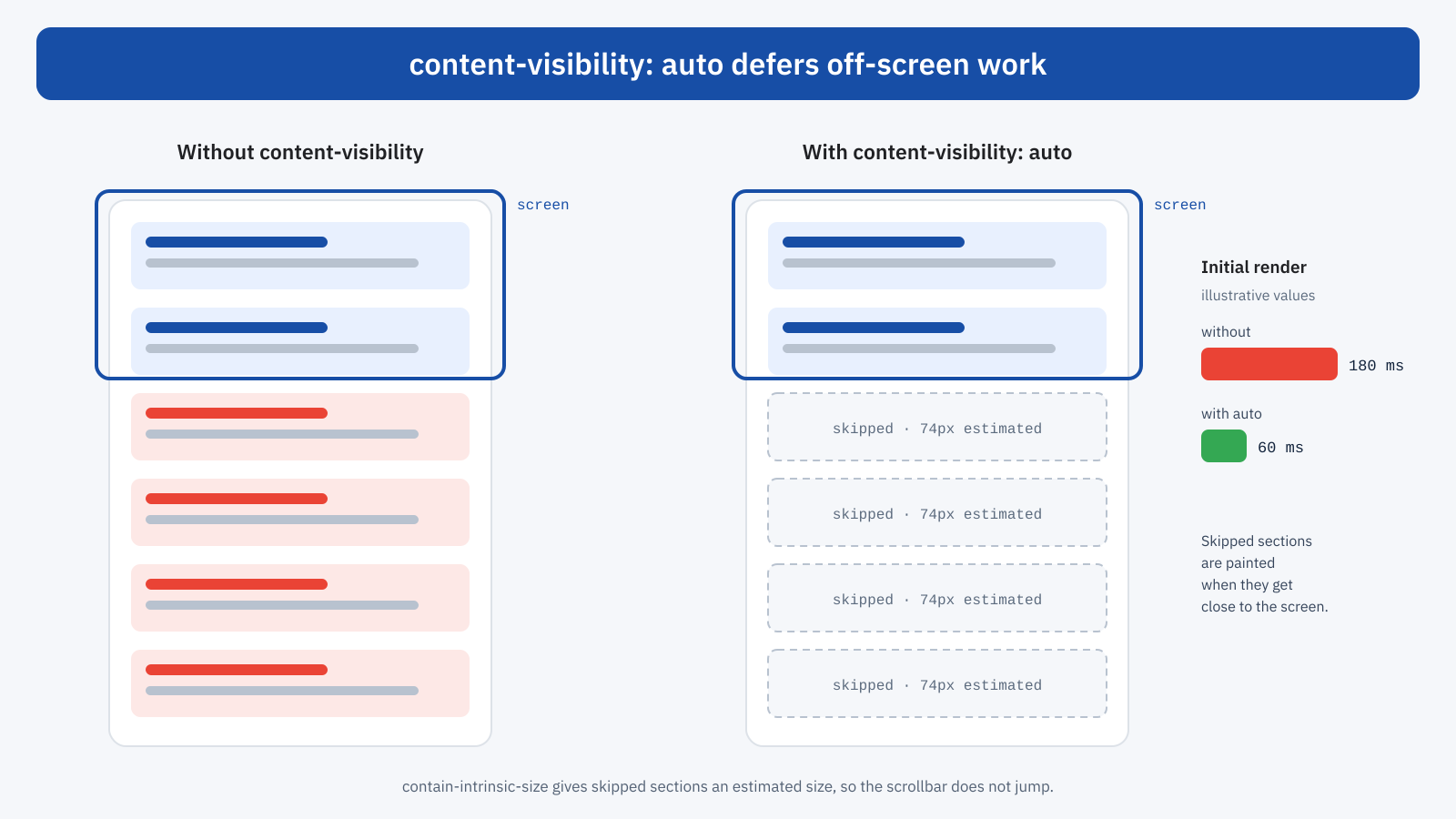
There is one important detail. Until the content is processed, the browser does not know its height, and would treat the element as if it were zero tall. The page would end up shorter than it really is and the scrollbar would jump as sections are processed. To avoid this you use contain-intrinsic-size, which provides an estimated size. With the auto keyword the browser remembers the real size after the first processing and uses it in place of the estimate.
/* Comments and sections at the bottom of the article */
.commentlist > li,
.articoli-correlati,
.site-footer {
	content-visibility: auto;
	contain-intrinsic-size: auto 600px;
}
The estimate does not need to be precise, but it should be reasonable: if it is far from reality, the page length changes noticeably while scrolling. In most cases this is not a problem for CLS, because the shifts happen off-screen, but it can make scrolling less predictable, especially when dragging the scrollbar.
Where to use it and where not
content-visibility: auto pays off when there is a lot of off-screen content and when that content is complex. Typical candidates are comment lists, related article sections, long category or archive pages, rich footers, product cards at the bottom of the page, spec tables. In these cases the saving on the initial render can be significant.
It should instead be avoided on elements visible at load, and in particular on those that contain the LCP element: there is nothing to defer, and it only adds a step. It is of little use on small, simple elements, where the avoided cost is minimal, and it should be applied with care to elements whose content is measured by scripts, such as some carousels or galleries, which might read wrong sizes while the content is not yet processed. One last caution concerns anchors: jumping with an internal link to a distant section works, but the sections in between are processed with the estimated size, and the final position may shift slightly if the estimates are imprecise.
contain: confining recalculation
The contain property is the tool content-visibility is built on, and it can also be used on its own. It declares to the browser that an element is independent of the rest of the page in one or more respects, and lets it limit the work when something changes inside it. There are four main values:
layout: the element’s internal layout does not affect the external one, and vice versa;paint: the content is not painted outside the element’s borders, and if the element is off-screen its content need not be painted;size: the element’s size does not depend on its content, and so must be stated explicitly;style: some effects, such as counters, do not leave the element.
The content value is equivalent to layout paint style and is the most convenient in practice: it does not require fixing the size and gives the browser the most useful guarantees. The strict value also adds size, and is suitable only for elements with known dimensions, such as an ad slot or a fixed-size widget container.
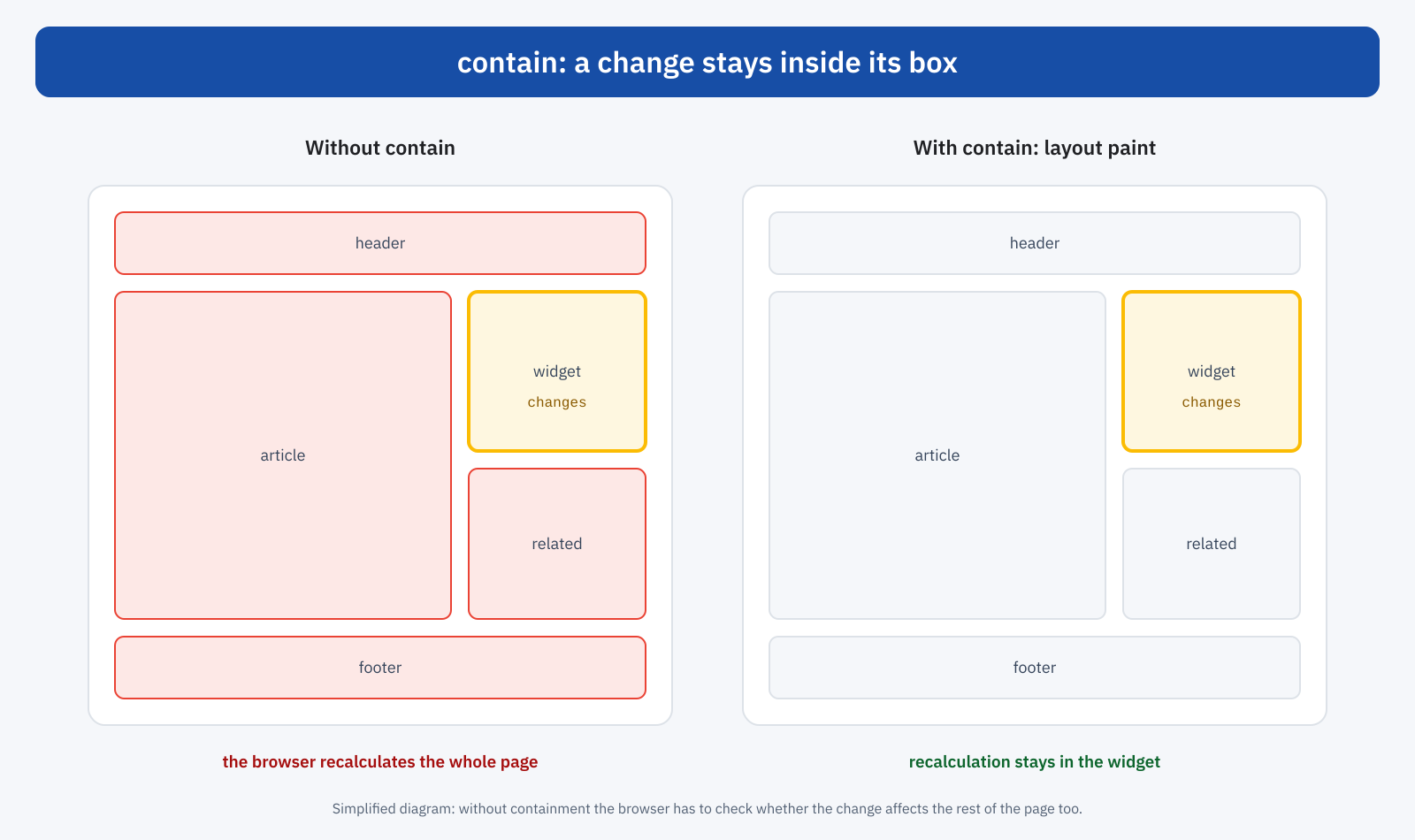
The most interesting use cases are components that change often: a widget that updates periodically, a counter, a side cart, a chat block, a filter panel that shows and hides options. Without containment, every change inside them can force the browser to recalculate the layout of a large portion of the page. With contain: content the work stays confined. It is a gain that shows mostly in interactions, that is in INP, on large pages.
Containment has side effects you should know about. With paint, content that sticks out of the borders is clipped, which can hide dropdowns, suggestions or shadows that extend beyond the box. With layout the element becomes the reference for positioned elements inside it, which can change the position of fixed or absolutely positioned elements. That is why it should be applied component by component, checking the result, and not across the board.
Container queries: adaptive components without scripts
Media queries adapt style to the width of the window. Container queries adapt it to the width of the container a component sits in. The same product card can appear horizontal in the main column and vertical in a narrow sidebar, with no need for different classes or code that measures the available space.
.griglia-prodotti { container-type: inline-size; }

.scheda { display: grid; gap: 1rem; }

@container ( min-width: 36rem ) {
	.scheda { grid-template-columns: 12rem 1fr; }
}
Container queries are above all a design tool, but they have an effect on performance: they replace JavaScript solutions that measured containers with ResizeObserver or, worse, with resize event handlers, and added classes accordingly. Those solutions ran code on the main thread, and often caused a first render with the wrong style followed by a correction, with a visible shift. With container queries the adaptation happens in style calculation, at first render.
Note that container-type: inline-size applies containment of the horizontal size: the container’s width cannot depend on its content. In most layouts this is not a problem, because containers take their width from the parent, but a container that was meant to fit its content can shrink unexpectedly.
CSS that replaces JavaScript
Many features that used to require JavaScript libraries are now available in CSS or native HTML. Every script removed is less code to download, parse and run, and less work on the main thread during interactions:
- carousels: scroll snapping lets you build scrollable carousels with precise snaps to individual cards, without libraries;
- accordions and FAQs: the
detailselement withsummaryopens and closes content without scripts; - modal windows and popup menus: the
dialogelement and thepopoverattribute handle opening, closing, stacking level and the Esc key; - sticky headers:
position: stickyreplaces scripts that listened to scrolling to pin an element; - aspect ratios:
aspect-ratioreserves the space of images, videos and embeds, preventing layout shifts; - conditional styles: the
:has()selector lets you style an element based on its content, an operation that used to require scripts; - scroll animations: as seen in the article on performant animations, they can be declared in CSS.
Not all of these are perfect replacements: a carousel library offers features that scroll snapping does not have, such as autoplay. But on many sites those features are not needed, and the library weighs tens of kilobytes to achieve an effect the browser already provides.
What about selectors?
A frequent question concerns the cost of complex selectors. On the vast majority of sites it is negligible: browser engines are highly optimized, and the time spent evaluating selectors is a tiny fraction of rendering. It becomes relevant only in extreme cases, with very large DOMs, stylesheets with thousands of rules and frequent changes. The :has() selector deserves a little attention, because a rule like body:has(.qualcosa) forces the browser to re-evaluate the style of a large part of the page every time the content changes; limiting its scope to the relevant component is a good habit. In general, though, the weight of unused CSS and the size of the DOM matter far more than the shape of selectors.
Compatibility and progressive enhancement
The properties described are supported by recent versions of all major browsers: container queries and contain for some time, content-visibility more recently in Firefox and Safari too. The advantage of these properties is that browsers that do not know them ignore them: the page works anyway, simply without the optimization. It is an ideal case of progressive enhancement, requiring no fallbacks or compatibility code, with the sole exception of container queries, which change the look of components and therefore need an acceptable base style even without them.
In WordPress
On a WordPress site these rules are added in the child theme’s CSS or, in block themes, in the site editor’s additional CSS. The natural targets are the sections the theme generates at the bottom of the page: the comment list, related article blocks, the footer, query blocks on archive pages. It is more effective to apply content-visibility to the individual items of a long list, such as single comments, than to the whole list, because the browser can then process only those that get close to the screen. Avoid applying it to all the blocks of the article content, which almost always includes the LCP element and the first visible sections.
How to measure
As with any optimization, it pays to measure before and after. In the DevTools Performance panel, recording the page load with CPU throttling, you compare the time spent in style recalculation, layout and paint. Recording an interaction, such as opening a menu or updating a filter, you check whether containment reduces the work. On real-user data, an effective change shows up in the initial render time and in the INP of long pages, more than in lab scores, which on short pages may show no differences.
A concrete example
Consider a blog with heavily commented articles: some pages have over three hundred comments, each with an avatar, text and reply buttons, followed by a related articles block and a footer with several widgets. On a mid-range smartphone the initial render of these pages occupies the main thread for several hundred milliseconds, and opening the navigation menu responds with a delay. By applying content-visibility: auto to the individual comments, with a reasonable estimated size, and to the related block, the browser processes only the content close to the screen; by adding contain: content to the menu, opening it no longer involves the rest of the page. The content stays identical, and the change is a few lines of CSS.
In short
Modern CSS offers tools that reduce the browser’s work after loading. content-visibility: auto defers processing of off-screen content and is effective on long pages, as long as you provide an estimated size and do not apply it to content visible at load. contain confines recalculation inside components that change often, with some side effects to check. Container queries adapt components to their space without scripts. Many other native features let you remove JavaScript libraries. These are small changes, safe thanks to progressive enhancement, to be applied where the page is really large and checked with measurements.
