For many WordPress site owners, optimizing performance means installing a plugin. WP Rocket, LiteSpeed Cache, Perfmatters, W3 Total Cache, Autoptimize, FlyingPress and many others promise faster pages, higher PageSpeed scores and Core Web Vitals in the good status in a few clicks. Some largely keep the promise, others less so, and almost all of them can do damage if configured without understanding what they do.
In this article we don’t rank them: the features overlap, versions change and the best plugin depends on the server, the theme and the rest of the site. Instead we look at what these features really do, which ones have a concrete effect on user metrics and which mainly on scores, how to avoid conflicts and breakage, and a practice that circulates in this field more than you might think: performance cloaking, that is, serving tests a different page from the one users receive.
Three families of plugins
Under the generic label of “optimization plugins” live tools with different purposes, and confusing them is the first cause of wrong configurations.
- Full caching plugins. They offer a page cache and, around it, a series of front-end optimizations. WP Rocket handles the page cache directly, with static files served by the server; LiteSpeed Cache uses the cache built into LiteSpeed servers, and without a compatible server, or the QUIC.cloud service, its page cache is not available, although many optimization features remain. W3 Total Cache and WP Super Cache belong to the same family.
- Front-end refinement plugins. They don’t handle the page cache, but act on what the page loads: disabling scripts and styles page by page, removing superfluous WordPress features, delaying JavaScript, optimizing fonts and images. Perfmatters is the best-known example, designed to be paired with a caching solution.
- Specialized plugins. Image optimization, file aggregation and minification, critical CSS generation, database cleanup. They do one thing only, and often overlap with the features of plugins from the other families.
Many managed hosts also offer a server-level page cache, with Varnish, Nginx or LiteSpeed, as we saw in the article on TTFB and page caching. In that case, enabling a plugin’s cache as well is useless at best and harmful at worst: two cache layers to purge, unpredictable behavior, stale pages served after an update.
The features, one by one
Beyond the commercial names, the features on offer are largely the same. It is best to assess them by the effect they have on users and by the risk of breaking something.
Page cache
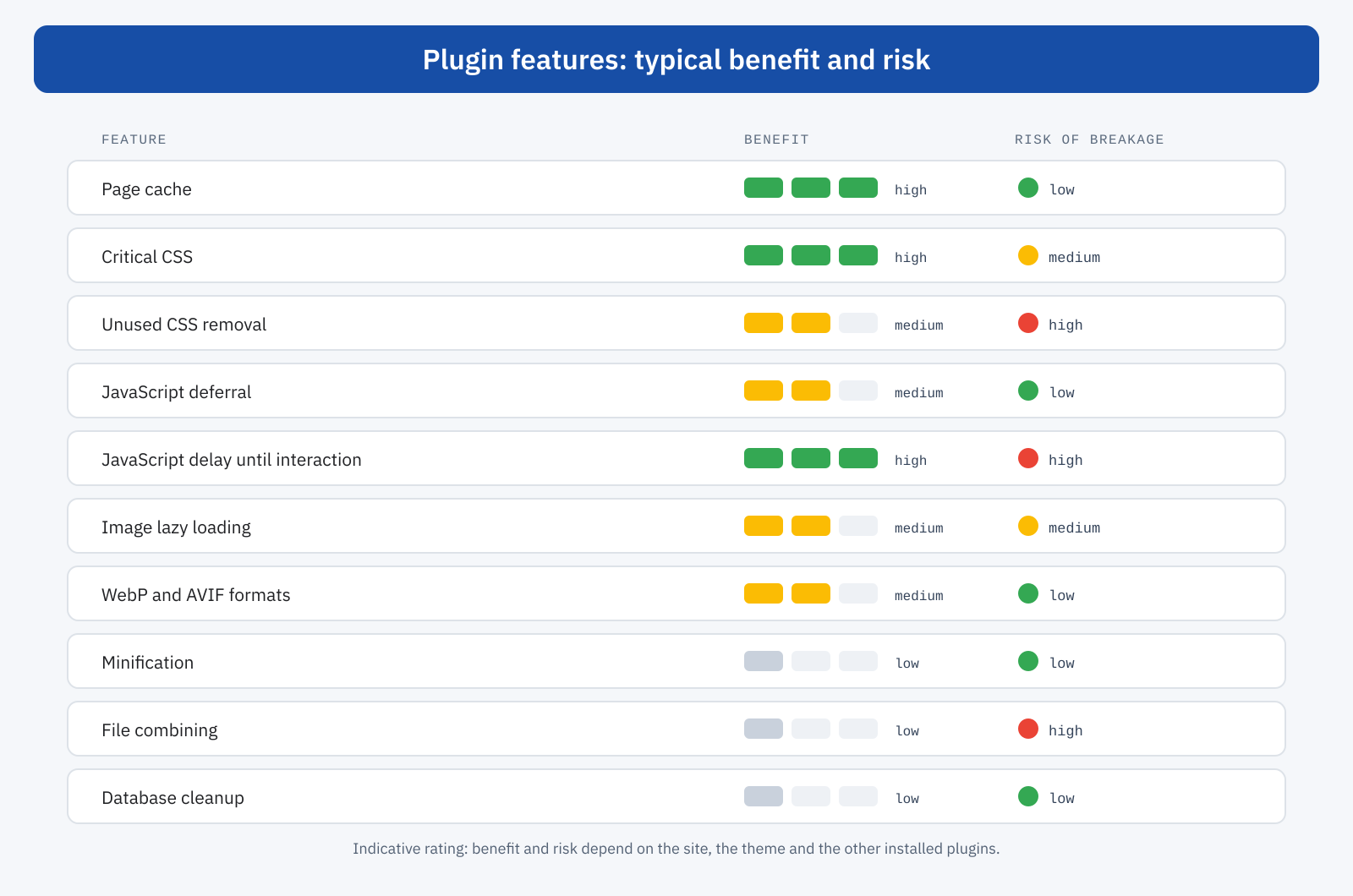
This is the feature with the highest benefit and the lowest risk: pages are served ready-made, without running WordPress, with a TTFB of a few tens of milliseconds. If the server or hosting doesn’t offer a page cache, the plugin that provides one is the first to install. You only need to configure the exclusions correctly, such as cart, checkout and members area, and the purge rules for when content changes.
Critical CSS and unused CSS removal
Critical CSS, that is, the styles needed for the first paint placed inline in the HTML with the rest loaded non-blocking, can bring the first paint and LCP forward considerably, as we saw when discussing inline and external critical CSS. Unused CSS removal goes further: it analyzes each page and strips out the rules that aren’t used. It is effective on heavy themes, but it is also the feature that most often breaks the look of pages, because many rules are needed only in states the analysis doesn’t see: open menus, modal windows, error messages, elements added by JavaScript, as explained in the article on unused CSS and dynamic states.
Deferring and delaying JavaScript
Deferral adds the defer attribute to scripts, which are downloaded in parallel and executed after the document has been parsed, without blocking rendering. It is a safe measure in most cases. Delaying until interaction is far more aggressive: scripts aren’t even downloaded until the user moves the mouse, touches the screen or scrolls the page. The effect on lab tests is spectacular, because nobody interacts during the test and the JavaScript is simply never loaded.
For exactly this reason it should be used knowingly. On real users, the work doesn’t disappear: it is moved to the moment of the first interaction. If the delay involves heavy scripts, the user’s first tap triggers the download and execution of all the page’s JavaScript, and that interaction can become very slow, worsening INP instead of improving it. The technique works well for non-essential third-party scripts, such as chat, pixels and widgets, as explained in the article on delaying JavaScript until the first click; applied indiscriminately to everything, it mainly improves the score.
Images, fonts and preload
Lazy loading, conversion to WebP and AVIF, explicit dimensions, locally hosted fonts, preload and preconnect: these are useful features, but almost all overlap with what WordPress already does on its own or with what the theme should do. The main risk is lazy loading applied to the LCP image, and preloading too many resources, both covered in the articles on lazy loading and on preload, preconnect and fetchpriority.
Minification and combining
Minification removes whitespace and comments from CSS and JavaScript: the gain, after compression, is modest but almost risk-free. Combining files into a single stylesheet or script mattered with HTTP/1.1, when every request had a high cost; with HTTP/2 and HTTP/3 the advantage has largely disappeared, while the risks remain: errors in a single script that block all the others, cache invalidated at every change to a single file, altered execution order. Today it is generally best to leave it disabled.
Overlaps and conflicts
One of the most common mistakes is installing several plugins with similar features: a caching plugin with its front-end optimizations, a second for images with its own lazy loading, a third for critical CSS, sometimes the CDN’s optimizations as well. The result is features applied twice, with unpredictable effects: double lazy loading that hides images, scripts deferred twice that run in the wrong order, CSS minified by one plugin and reprocessed by another, multiple caches to purge in sequence.
The practical rule is simple: one feature, one owner. For each optimization you decide who handles it, the server, the CDN, the theme or a specific plugin, and you turn it off elsewhere. A table of features and their owner, kept in the site’s documentation, avoids many problems with later changes.
Performance cloaking
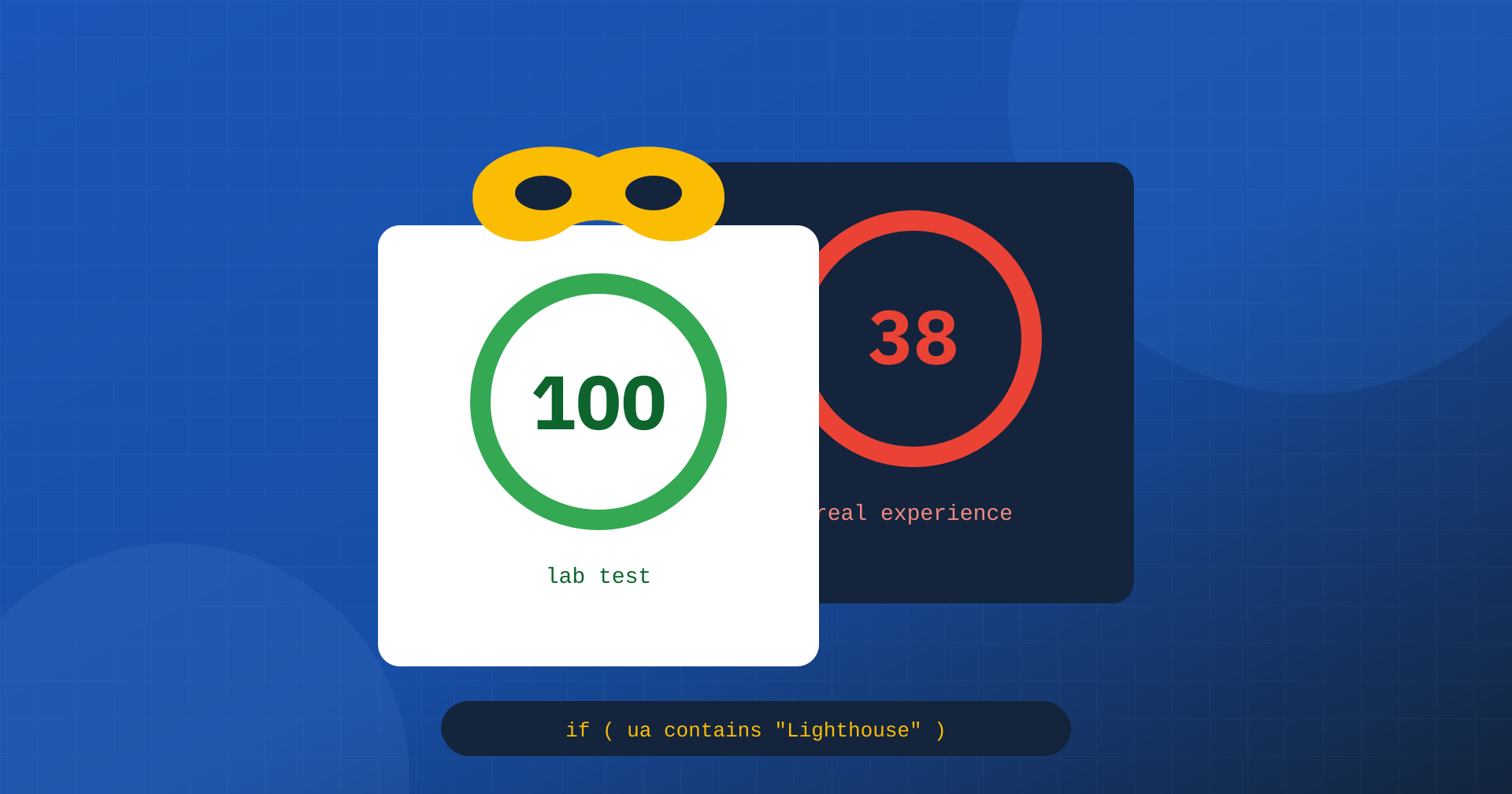
There is a practice that is rarely talked about but that people working in the field run into fairly often: serving testing tools a different page from the one users receive. The mechanism is simple. Lighthouse, and therefore PageSpeed Insights, identifies itself with a User-Agent header containing the string Chrome-Lighthouse. A plugin, a service or a snippet of code can recognize it and, only in that case, return a stripped-down version of the page: without scripts, without fonts, without heavy images, sometimes practically empty. The test measures that page and returns a score close to 100.
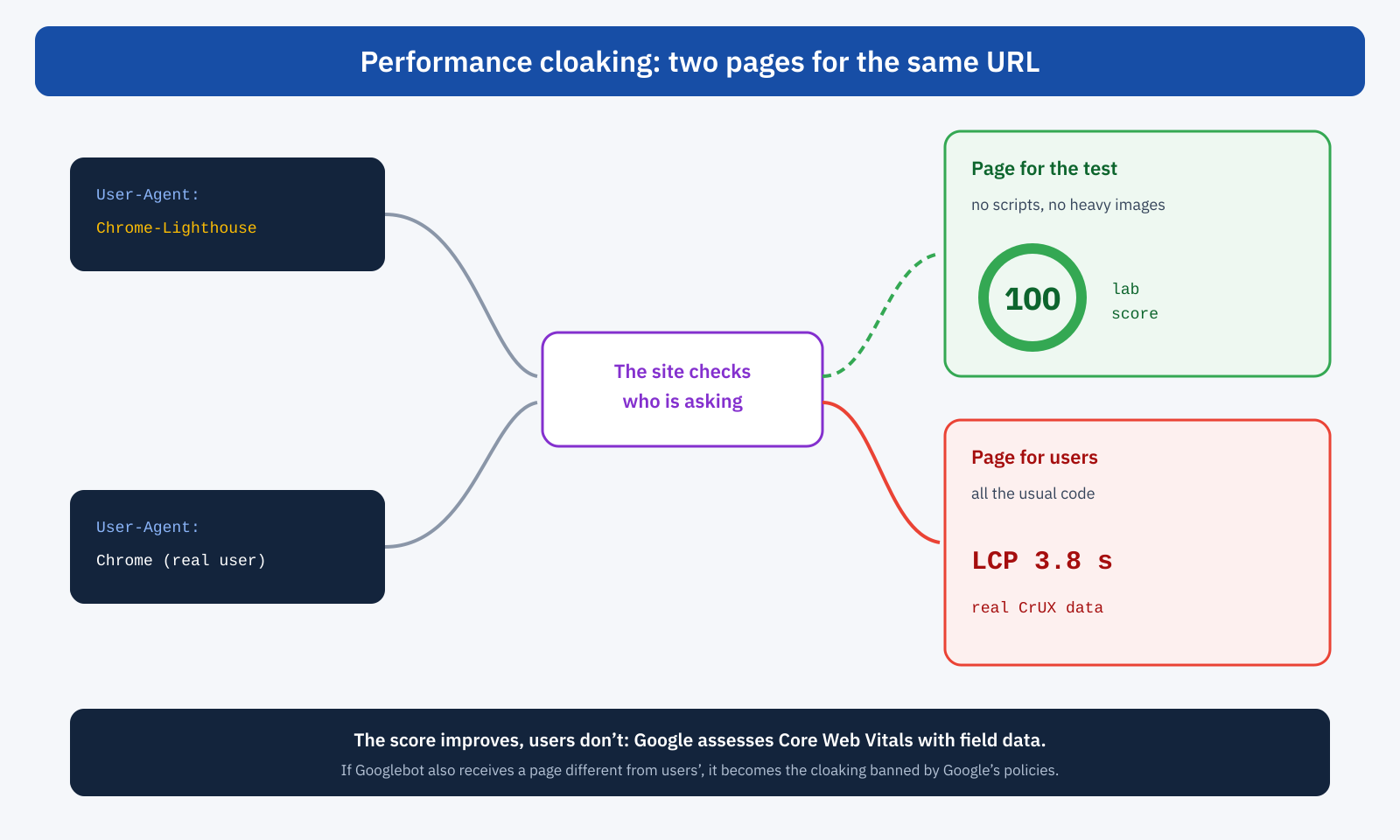
The term cloaking comes from SEO, where it denotes the practice of showing search engines different content from what users see, and it is explicitly banned by Google’s spam policies. In the performance context the target isn’t the search engine but the measuring tool, and the goal isn’t ranking but the score. The principle, though, is the same: showing whoever is evaluating something that users will never see.
Why it happens
The reason is commercial. The PageSpeed score has become, for many clients, the measure of a site’s quality: easy to check, expressed as a number from 0 to 100, colored green or red. Agencies and vendors are often judged on that number, and some products are sold with the explicit promise of “100/100 on PageSpeed”. When the real site is far from that result, the temptation to get it by other means exists, and some solutions on the market have indulged it, more or less openly.
Why it doesn’t work
Performance cloaking improves a number that doesn’t matter to Google. The Core Web Vitals used in evaluating pages come from Chrome UX Report field data, collected from real users’ browsers, as explained in the article on the differences between PageSpeed Insights and Lighthouse. Users receive the real page, and their data reflects the real page. The lab score goes up to 100, the field data stays what it was, and on the very same PageSpeed Insights page, a few lines higher up, the section with real data keeps showing poor values.
Moreover, the risk isn’t only one of uselessness. If the mechanism also recognizes Googlebot, or Google’s rendering services, and serves them a page different from the users’, it becomes cloaking in the proper sense, with the risk of manual actions against the site. And even when it concerns only Lighthouse, a page served in reduced form to automated tests can cause problems with other tools that use the same engine, from accessibility checks to social media previews.
The most serious damage, however, is something else: the false score hides the real problems. Someone looking only at the green number doesn’t see that users are waiting four seconds, doesn’t invest where it’s needed and discovers the problem when it turns into lost traffic or conversions. For an agency’s client, paying for a fake score means paying to stay in the dark.
The subtler forms
Not all forms of optimizing “for the test” are explicit cloaking. Some legitimate techniques, taken to the extreme, produce the same effect: a score that doesn’t describe the experience. The most common case is delaying all JavaScript until the first interaction, seen above: Lighthouse never interacts with the page, so it never runs the delayed code, and measures a page no real user will see in that state, because every user sooner or later touches the screen. Other examples are inserting the main content only after an interaction, so that the LCP measured in the lab is a secondary element, or replacing the main image with a very light placeholder that becomes the LCP element in its place.
These techniques don’t violate any policy, and in moderate doses they have real benefits. But the criterion for judging them is always the same: do they improve the users’ experience or only the test number? The answer is found in the field data.
How to spot it
The first signal is the gap between lab and field. A site with a lab score close to 100 and field data in the poor status, consistently and across many pages, deserves an investigation: differences between the two kinds of data are normal, but not of that magnitude. The second check is direct: request the same page with two different headers and compare the responses.
# The same page as seen by a browser and by Lighthouse
UA_BROWSER='Mozilla/5.0 (Linux; Android 14) AppleWebKit/537.36 (KHTML, like Gecko) Chrome/130.0 Mobile Safari/537.36'
UA_TEST="$UA_BROWSER Chrome-Lighthouse"

curl -s -A "$UA_BROWSER" https://example.com/ -o browser.html
curl -s -A "$UA_TEST"    https://example.com/ -o test.html

wc -c browser.html test.html                 # very different sizes?
grep -c '<script' browser.html test.html     # different number of scripts?
diff <( grep -o 'src="[^"]*"' browser.html ) <( grep -o 'src="[^"]*"' test.html )
If the responses differ substantially, the page is being served differently to tests. The check should also be repeated browser-side, because the detection can happen in JavaScript, by reading navigator.userAgent: in DevTools, in the Network conditions section, you can set a custom User-Agent containing Chrome-Lighthouse and compare what gets loaded. Finally, in the theme and plugin code, searching for strings such as Lighthouse, PageSpeed or GTmetrix quickly reveals any suspicious conditions.
Another useful check is to compare the PageSpeed Insights test with a test run with a different tool, such as WebPageTest with a real device profile, or with a simple load recorded in DevTools: if only the Lighthouse test returns a light page, suspicion becomes certainty.
How to configure a plugin sensibly
A methodical approach avoids most problems, both breakage and misleading scores.
- Measure first. Field data by page template, a reference lab test and, if possible, a Real User Monitoring system.
- Start with the cache. Page cache at server level or, failing that, from the plugin. It is the foundation, and rarely causes problems.
- Enable one feature at a time. After each activation, check the main pages, including menus, forms, cart, cookie banners and the mobile version, and check the browser console for errors.
- Use exclusions. Exclude from the delay the scripts needed for the initial interaction, from lazy loading the LCP image, from CSS removal the classes used in dynamic states.
- One feature, one owner. Disable duplicate features in the other plugins, in the theme and in the CDN.
- Judge on field data. After 28 days, the real data says whether the configuration improved the experience, regardless of the score.
When the plugin isn’t enough
An optimization plugin works on the code the site already produces: it can reorder it, delay it, compress it, but it can’t make it lighter than it is. A theme with two megabytes of JavaScript, a page builder with a huge DOM, twenty third-party scripts, a slow server without a cache: in these cases the plugin can ease the symptoms, but the causes remain. When, after careful configuration, field data stays far from the thresholds, the problem is upstream, and has to be tackled in the theme, the content, the scripts or the infrastructure.
The opposite also holds: a well-built site, with a lightweight theme, few plugins and hosting with a page cache, can achieve excellent Core Web Vitals without any optimization plugin, or with a minimal configuration. The plugin is a tool, not a strategy.
How to evaluate who proposes the optimization
For anyone commissioning performance work, a few questions help tell a serious job from one aimed at the number. On what data will the result be measured: only the PageSpeed score or also field data? Which features will be enabled, and what exclusions are planned so as not to break the site? How will menus, forms, payments and cookie banners be checked? What happens to INP with JavaScript delay? A vendor who answers by talking only about the score, or who guarantees “100/100” without having seen the site, deserves a few more questions.
In short
Optimization plugins for WordPress bundle very different features: the page cache, which has the highest benefit and the lowest risk; critical CSS and JavaScript delay, effective but delicate; minification and combining, of little impact today. They work well when each feature has a single owner and is enabled methodically and checked on real pages and on field data.
Performance cloaking, that is, serving tests a stripped-down page by recognizing Lighthouse’s User-Agent, produces high scores that don’t match users’ experience and don’t change the Core Web Vitals Google uses, which are based on real data. In the worst case, if it also involves Googlebot, it exposes the site to penalties; in any case it hides problems instead of solving them. The lab score is a diagnostic tool: treating it as a goal to reach at all costs means losing sight of the people the site is meant to serve.
