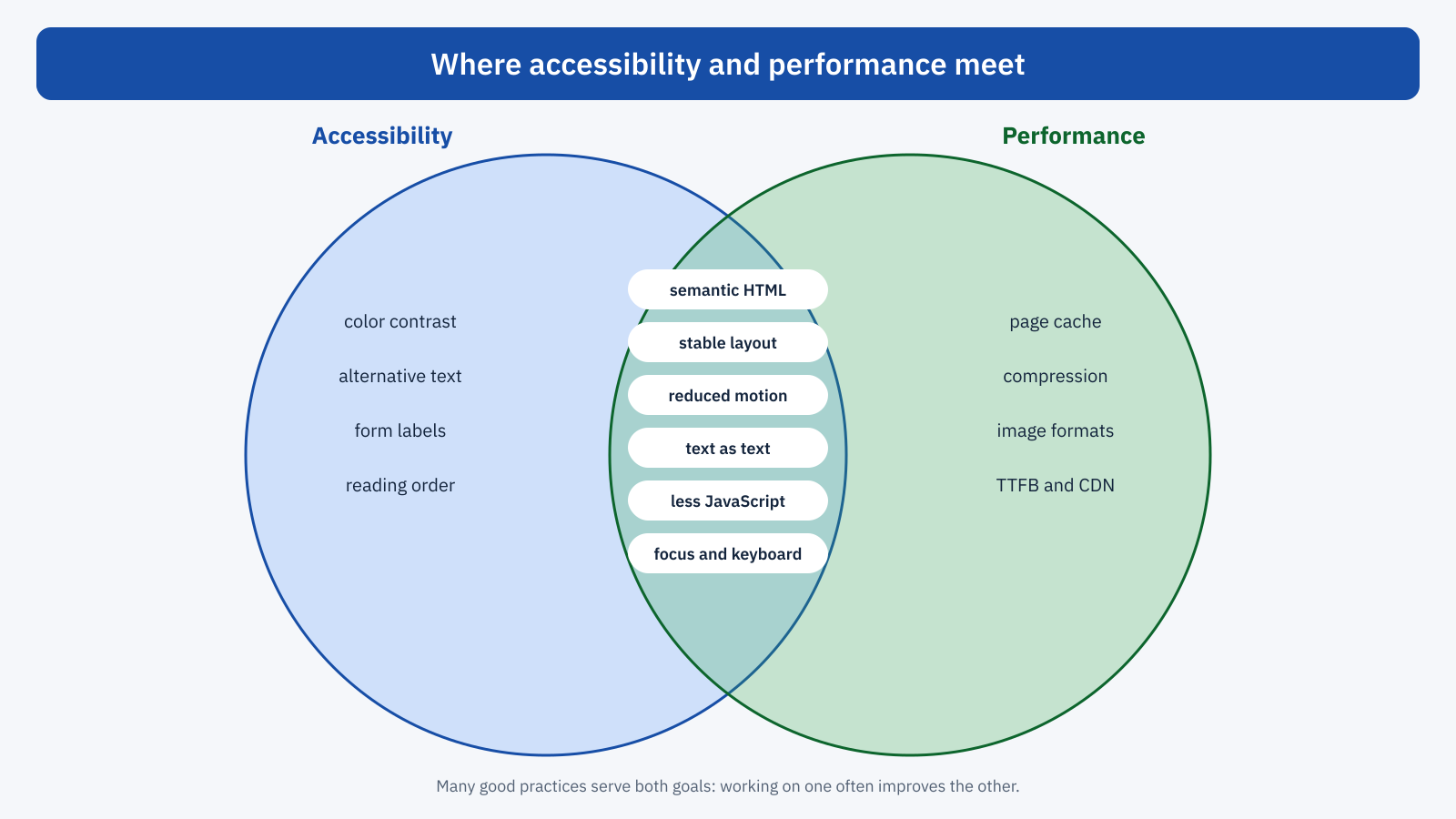
Accessibility and performance are often treated as separate disciplines, with different specialists, tools and checklists. Accessibility is about making a site usable by people with visual, motor, hearing or cognitive disabilities; performance is about making it fast and responsive. Yet, looked at closely, the two disciplines have the same goal: making the site work for everyone, and in particular for people who use it in conditions different from those it was designed for.
A cheap smartphone, a slow network, a screen reader, a magnifier, an arm in a cast, sunlight that makes the screen unreadable: these are all situations in which a heavy, unstable site becomes hard to use, and in which a well-built site keeps working. In this article we look at where accessibility and performance meet, where a good choice serves both, and where a poorly done performance optimization can create barriers.
Often the same users
A first point of contact is the people. People who use assistive technologies don’t always have the latest device, and screen readers add a workload of their own: they have to rebuild the page structure, follow its changes and announce them. A page with thousands of elements and a lot of JavaScript, already slow on a mid-range smartphone, gets even slower when the device also has to power a screen reader. Many older people, who benefit from an accessible interface, use older devices and slower connections.
Then there is situational disability, which affects everyone: using the phone with one hand on the tram, reading in full sun, browsing on an unstable connection on a train. In these conditions, slow pages, content that shifts and buttons that don’t respond are obstacles for everybody. Designing for edge cases, in both disciplines, improves the experience for the majority.
Semantic HTML: less code, more accessibility
The most important meeting point is semantic HTML. A button built with the button element is reachable by keyboard, can be activated with Enter and Space, is announced correctly by screen readers, and needs not a single line of JavaScript for any of these functions. The same button built with a div requires ARIA attributes for the role, a tab index, keyboard and mouse event handlers, and often a library to manage focus: more code to download and execute, and more chances for error.
The same goes for many common components. An expandable panel can be built with details and summary, accessible and working without JavaScript; a modal window with the dialog element, which handles focus and closing with the Esc key; a drop-down selection menu with select. Component libraries that rebuild everything with generic elements and JavaScript are often both heavier and less accessible than the native alternatives. Choosing browser elements, when they exist, is the choice that serves both disciplines.
<!-- Frequently asked questions: accessible and working without JavaScript -->
<details>
	<summary>How long does shipping take?</summary>
	<p>Orders ship within 24 working hours…</p>
</details>
Stable layout
CLS measures unexpected content shifts, and is perhaps the metric most directly tied to accessibility. For someone with a tremor, who uses an alternative pointing system or who moves more slowly, the time between deciding to tap an element and the actual tap is longer, and a shift in that interval leads to a tap on the wrong element. For someone using a magnifier and seeing only a small portion of the page, a shift means losing the place where they were reading. For people with cognitive or attention difficulties, content that moves is a source of confusion.
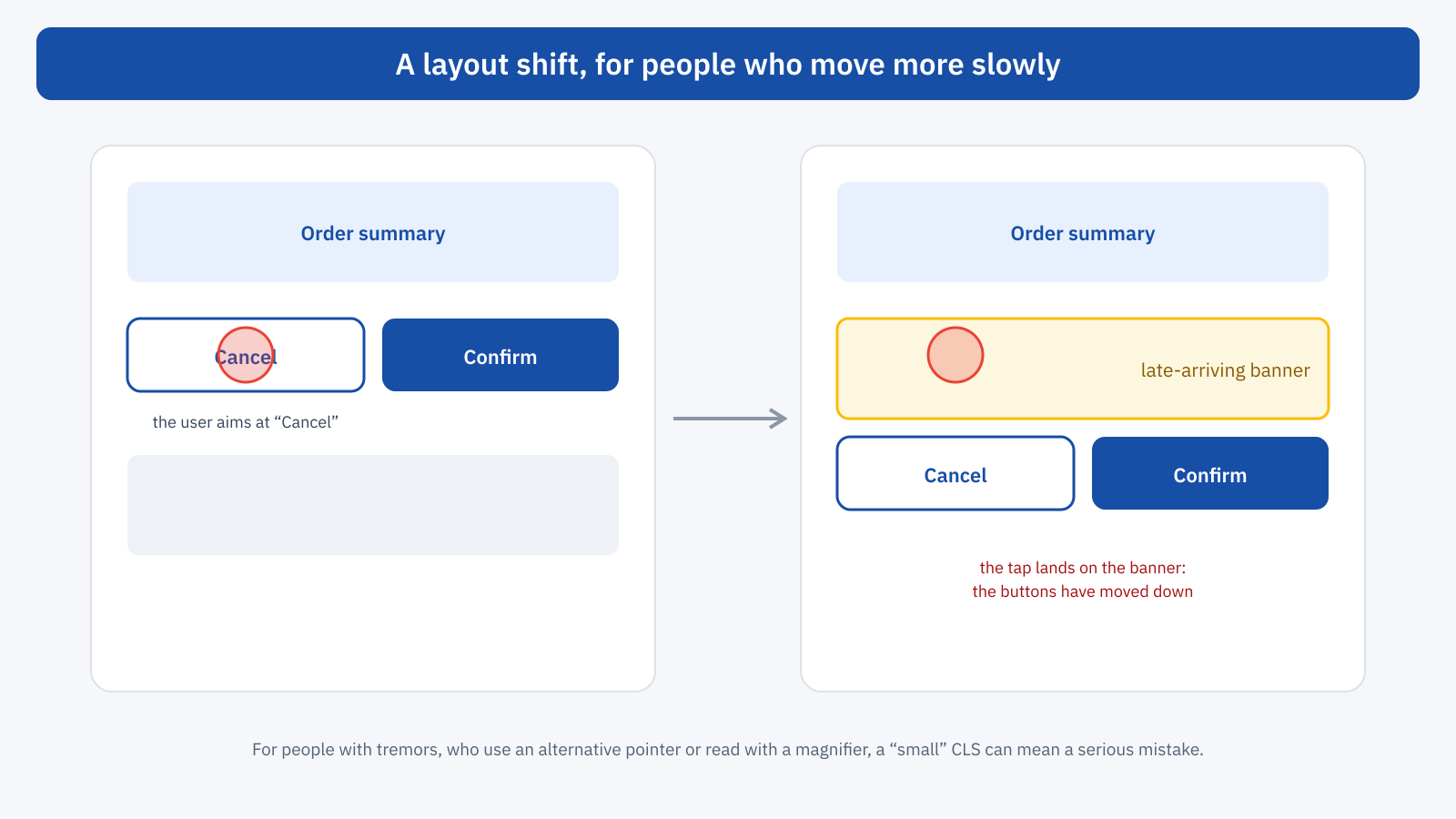
Accessibility guidelines ask that the interface be predictable and that changes of context not happen unless the user has requested them. A low CLS isn’t enough to guarantee this, because the metric evaluates all shifts together and not the single shift at the wrong moment, but all the techniques for reducing it, such as explicit dimensions for images and videos, space reserved for banners and ads, content inserted below rather than above what the user is looking at, directly serve accessibility too.
Responsiveness and assistive technologies
INP measures the response time to interactions. For people using the keyboard or a screen reader, a slowly responding interface is even more problematic: without immediate visual feedback, or with feedback that arrives after half a second, it is hard to tell whether a command has been received, and the temptation to repeat it produces double submissions and unwanted actions. The long JavaScript tasks that slow down INP also slow down the updating of the information the browser provides to assistive technologies, which may announce changes late or in a confusing order.
The solutions are the same ones we saw when discussing the main thread: less JavaScript, work split into smaller parts, immediate feedback before processing. To these is added an aspect specific to accessibility: the feedback must not be only visual. An aria-live region announcing “Product added to cart” gives screen reader users the same immediate confirmation that an animated icon gives to those who see the screen.
Reduced motion
Many operating systems let users request reduced animations, an important setting for people with vestibular disorders, for whom large animations, parallax and zoom can cause nausea and dizziness. The site can read it with the prefers-reduced-motion media query and reduce or remove animations. It is an accessibility choice, but it also affects performance: fewer animations mean less work for the browser, fewer scripts to handle them and, often, content that is visible sooner.
@media ( prefers-reduced-motion: reduce ) {
	*,
	*::before,
	*::after {
		animation-duration: 0.01ms !important;
		animation-iteration-count: 1 !important;
		transition-duration: 0.01ms !important;
		scroll-behavior: auto !important;
	}
}
The same goes for content that moves by itself: carousels that scroll automatically and background videos that start when the page opens. The guidelines ask that they can be paused; from a performance standpoint they are among the most expensive elements, as we saw in the article on video and Core Web Vitals. Giving up autoplay, or at least respecting the reduced-motion preference by showing only a static image, serves both disciplines.
Text as text
Text inserted as an image, such as a headline in a banner, a price table exported as a graphic, or an infographic with the key data, is an obstacle for people using a screen reader, doesn’t adapt to text enlargement, can’t be translated automatically and weighs far more than the equivalent text. Real text, in the site’s fonts, is accessible, light, sharp on any screen and indexable. When an image with text is unavoidable, the alternative text must carry its content.
Fonts deserve special attention. A font that arrives late, with the font-display: block rule, leaves the text invisible for several hundred milliseconds: a waste of time for everyone and a problem for people who need more time to read. With font-display: swap the text appears immediately in a fallback font, and using the font metric adjustment properties limits the shift at the moment of the swap, as seen in the article on font subsetting. And zoom should never be disabled with user-scalable=no: it was a widespread practice for removing a tap delay in old mobile browsers, a problem modern browsers solved years ago.
When optimization creates barriers
Not all optimizations are neutral for accessibility. Some widespread techniques, applied carelessly, can make it worse.
- Delaying JavaScript until interaction. Many plugins load scripts only on the first mouse movement, tap or scroll. If they don’t also consider a key press, people navigating by keyboard alone may find menus, forms and buttons that don’t work, as we saw when discussing delaying JavaScript. It should be checked by navigating the site with the keyboard only.
- Facades. A preview of a video or a chat that replaces the real component must be a real button, with a clear label, reachable by keyboard. And when the real component is loaded, focus must move to it, not get lost.
- Removing unused CSS. It can strip out focus styles, styles for screen-reader-only text, or styles for states triggered by keyboard, which automatic analysis doesn’t see.
- Deferred loading of content. Content that appears only on scroll may be invisible to people browsing with a screen reader, which doesn’t scroll the page the way a mouse user does. Native image lazy loading doesn’t have this problem; solutions that insert text only during scrolling do.
- Cookie banners. A banner loaded late and kept compact for performance reasons must still receive focus when it appears and be usable with the keyboard, as explained in the article on consent banners.
Single Page Applications and focus
A special case concerns applications that change page without reloading it. In a traditional navigation, the browser announces the title of the new page and returns focus to the start of the document. In a Single Page Application, if the code doesn’t do this explicitly, a screen reader user may not notice that the content has changed and may find the focus on an element that is no longer visible. It is another argument in favor of traditional pages with modern tools, such as prerendering and cross-document transitions, which preserve the browser’s accessible behavior.
The regulatory framework
For many organizations accessibility is no longer just good practice. In Italy, accessibility obligations have existed for years for public administration, and with the transposition of the European Accessibility Act they extend from 28 June 2025 to many private consumer-facing services, including e-commerce, with some exclusions for microenterprises. The technical reference is the WCAG guidelines. Performance is not an explicit requirement of the rules, but many of the solutions that improve it, such as semantic HTML, stable layout and respect for user preferences, also contribute to compliance.
Checking both
Lighthouse includes a section dedicated to accessibility next to the one on performance, and it is worth looking at them together at every check. Automated checks, however, cover only part of the accessibility problems, such as color contrast, missing alternative text and form labels. The rest requires manual testing, and the simplest tests are within anyone’s reach: navigate the site with the keyboard only, turn on the reduced-motion preference, enlarge the text to 200%, try a screen reader on the main pages, use the site on a cheap smartphone over a slow connection. These are the same conditions in which performance problems emerge.
In short
Accessibility and performance serve the same people and answer the same question: does the site work for people who are not in ideal conditions? Semantic HTML reduces JavaScript and makes components accessible; stable layout prevents errors for people who move more slowly or use a magnifier; responsiveness helps people using keyboards and screen readers; reduced motion and text as text lighten pages and make them easier to use.
At the same time, some performance optimizations, if applied carelessly, create barriers: delayed scripts that ignore the keyboard, facades without labels, removed focus styles. The rule is to check every change through both lenses. A fast but inaccessible site, or an accessible but slow one, excludes someone; a site built with both in mind is simply a better site, for everyone.
