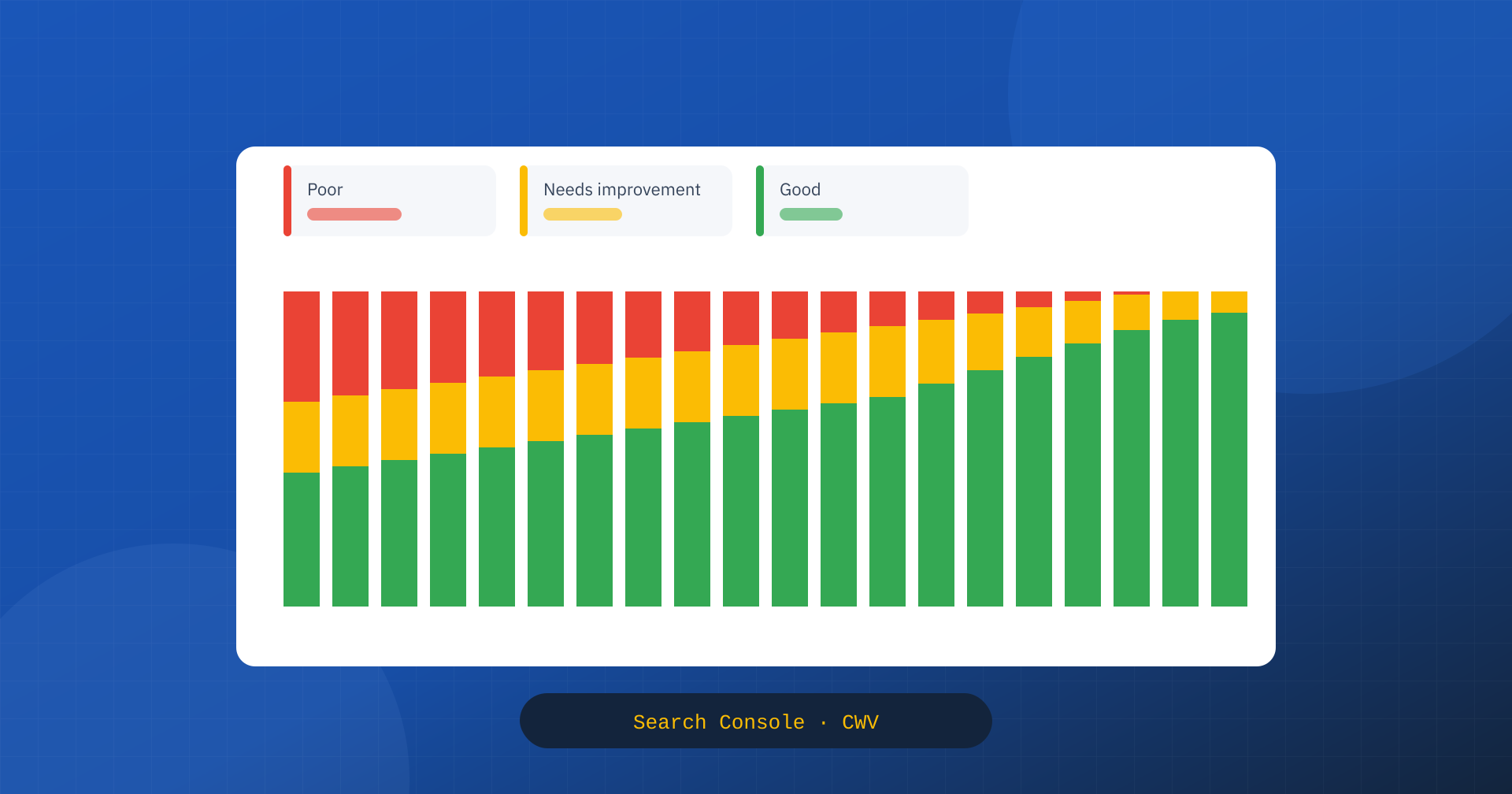
For many website owners, the Core Web Vitals report in Google Search Console is the first, and often the only, contact with performance metrics. It is where the “poor” or “needs improvement” URLs show up, along with Google’s warning emails and the charts that go up or down. It is also one of the most misunderstood reports: numbers that don’t match PageSpeed Insights, flagged pages that seem lightning fast, fixes that produce no visible effect for weeks.
Almost all of these misunderstandings can be explained by how the report is built. In this article we look at where the data comes from, how URL groups work, how to read statuses and counts, why fixes show up late, and how to use the report to decide where to act.
Where the data comes from
The report, found in the Experience section of Search Console, is based exclusively on field data from the Chrome UX Report: measurements collected from the Chrome browsers of real users who visit the site. It contains no lab tests, does not use Lighthouse, and does not depend on how many times you analyze a page with PageSpeed Insights. Each value is the 75th percentile of user experiences over the last 28 days, as explained in the article on the 28-day window.
The report is split into two sections, mobile and desktop, which need to be read separately: the experiences are very different, and a site can be good on desktop and poor on mobile. The thresholds are the official ones for the three metrics: LCP within 2.5 seconds, INP within 200 milliseconds and CLS within 0.1 for the good status; above 4 seconds, 500 milliseconds and 0.25 for the poor status.
URL groups
The most important concept, and the least intuitive, is the group. Search Console does not evaluate each URL with its own data: it groups the URLs it considers similar, by structure and content, and evaluates the group as a whole. Each URL in the group inherits the group’s status. That is why a specific page, perhaps lightning fast when you test it, can come out as “poor”: it belongs to a group that, overall, does not meet the thresholds.
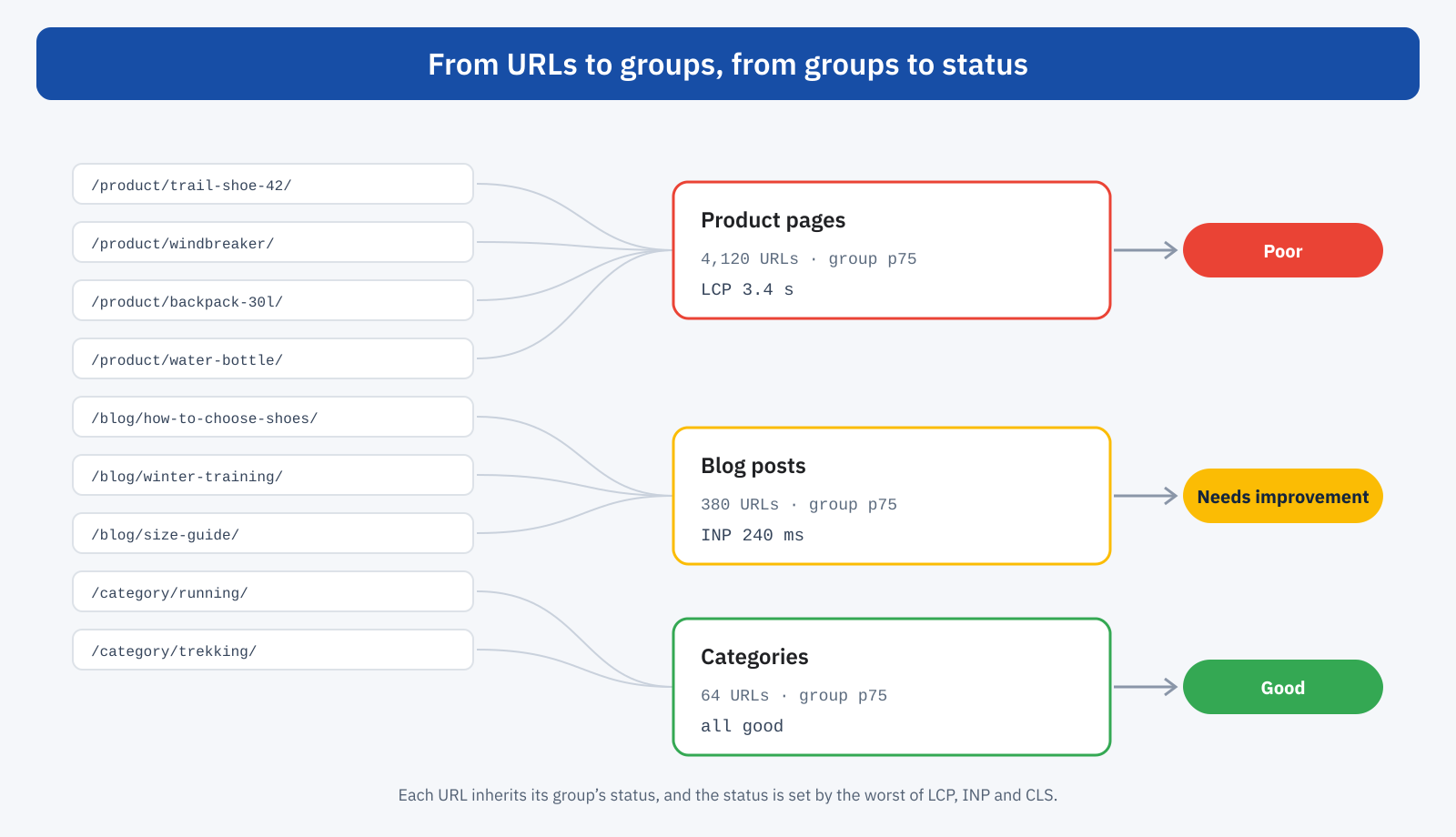
The grouping has a logic: most pages on a site don’t have enough traffic to have data of their own, while pages built from the same template tend to perform similarly. In practice, groups often match page templates: product pages, articles, categories, institutional pages. When you open a reported issue, the report shows a few example URLs with the group’s value; that is the place to start to work out which page template is involved.
The overall status of a group, and therefore of its URLs, is determined by the worst metric. A group with good LCP and CLS but INP that needs improvement is “needs improvement”. That is why, in the report, the same URL can appear in several issues, one for each metric that is out of threshold, but it is counted only once in the total, with the worst status.
Reading the counts
The main chart shows, day by day, the number of URLs in each status. Two clarifications prevent many wrong interpretations. The first: the URLs counted are not all the pages on the site, but only those for which data exists, directly or through the group. A site with ten thousand pages may show only a few hundred, and the number can change without anything having changed on the site, simply because traffic changes and so does the availability of data.
The second: the number of URLs does not indicate how important a problem is. A group of four thousand rarely visited product pages weighs on the chart far more than a home page with thousands of visits a day, but the latter can matter much more to the business. The count should always be read together with the traffic of the pages involved, which you can find in Search Console’s own performance report or in your analytics.
Sudden jumps in the chart, in either direction, often have causes outside the site. Google may recalculate the groups, and URLs previously considered similar may be split or merged. The switch from FID to INP in March 2024 moved many sites from good to needs improvement without any change, because the new metric is more demanding. And a change in traffic, such as visitors arriving from a campaign with different devices or connections, can shift the 75th percentile even though the pages haven’t changed.
Why it doesn’t match PageSpeed Insights
One of the most frequent questions concerns the differences from PageSpeed Insights. The top section of PageSpeed Insights also shows Chrome UX Report field data, but for the individual URL when it has enough traffic, and for the whole origin otherwise. Search Console shows the group’s value instead. Three different levels, URL, group and origin, can give three different values, all of them correct. The bottom section of PageSpeed Insights, the Lighthouse test, is a lab test and plays no role in the report, as explained in the article on the differences between PageSpeed Insights and Lighthouse.
Validating fixes
After fixing an issue, Search Console lets you start validation. The button does not speed up data updates: it starts a 28-day monitoring period during which Google checks whether the group’s URLs fall within the thresholds. If the group is in the good status at the end, validation passes; otherwise it fails, and must be repeated.
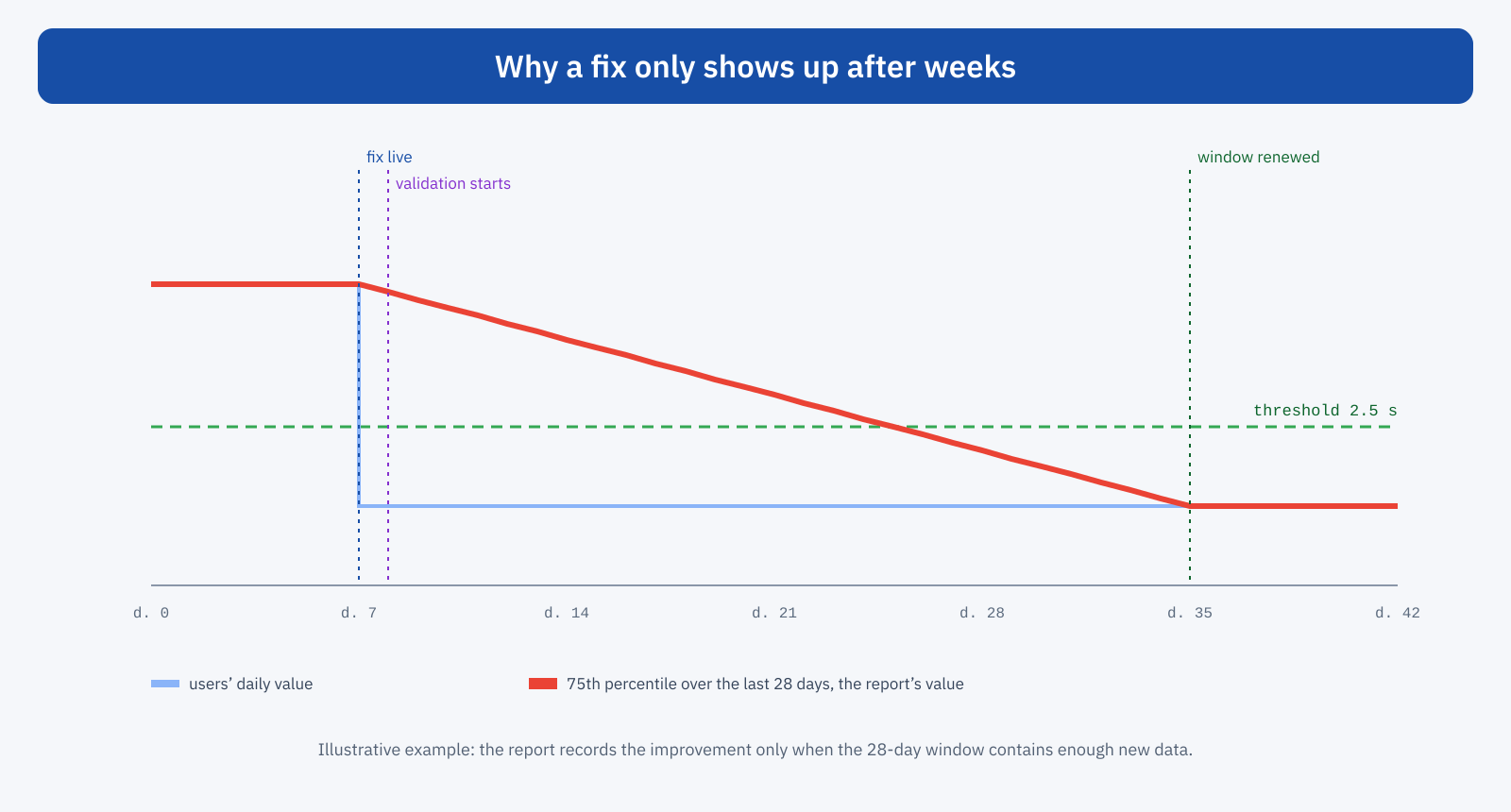
The delay is intrinsic to how the data is calculated. The day after a fix, 27 of the 28 days in the window still contain the earlier experiences. The report’s value improves gradually, and crosses the threshold only when there is enough new data to move the 75th percentile. On top of that comes a few days of processing delay. In practice, between an effective fix and its full reflection in the report, three to six weeks often go by.
To avoid being in the dark during this period, it is worth following the effects with more timely tools: Real User Monitoring, which shows data day by day, or the weekly series of the CrUX History API, which let you see the trend at a finer granularity. When the report finally updates, it should only confirm what this data already showed.
Pages without data
A new site, or one with little traffic, can show an empty report, or one with data for only one of the two sections. This doesn’t mean performance is good or bad, only that there are not enough visits from Chrome to calculate reliable statistics. In these cases Core Web Vitals are not used as a signal for those pages, and the most useful way to assess them is lab testing and, if traffic allows, a measurement system of your own.
How to use the report to decide
Read the right way, the report is a tool for setting priorities rather than for diagnosis. A practical method follows a few steps.
- Start with mobile. That is where most problems are concentrated and, for many sites, most of the traffic.
- Identify the groups. For each issue, open the example URLs and work out which page template they correspond to.
- Weigh by traffic. Prioritize the groups that receive the most organic visits or that matter most for conversions.
- Diagnose elsewhere. Use PageSpeed Insights and DevTools on a few representative URLs from the group to find the cause, and RUM, if available, for attribution.
- Annotate and validate. Record the date of every change, start validation and follow the trend with faster tools over the following weeks.
Noting the dates is a detail that saves a lot of time. Search Console does not record the site’s releases, and weeks later it is hard to remember what changed and when. A simple log with date, pages involved and type of change lets you link every variation in the chart to its cause, and tell the effects of your own changes apart from those of external factors.
A reading example
Imagine an online store that receives a warning: on mobile, over four thousand URLs have moved to the poor status for LCP. At first glance it looks like a disaster. Opening the issue, the example URLs are all product pages, and the group’s value is 3.4 seconds. The performance report shows, however, that these pages individually receive little organic traffic, while the categories, which bring in most of the visits from Google, are in the good status.
The problem is real, because product pages are where the purchase is decided, but its urgency needs scaling back from the initial alarm. A test on a few representative product pages shows that the main image is being lazy-loaded by a recently updated optimization plugin: the date of the decline coincides with that of the update. Once the setting is corrected, RUM shows a mobile LCP of 2.1 seconds from the very next day; the Search Console report will move the group back to the good status after about four weeks, and the validation will close accordingly.
Exporting and integrating the data
The report lets you export the chart data and the lists of example URLs, which are useful for archiving the situation before and after a change. For deeper analysis, the same source data is available through the CrUX API, which returns values by URL or by origin, and the CrUX History API, which provides weekly series covering several months. With visualization tools such as Looker Studio you can build dashboards that bring together CrUX data, organic traffic and conversions: a single view that makes it much easier to explain to decision makers why a performance project is worth its cost.
Warning emails
Search Console sends an email when it detects a new issue or an increase in URLs in a worse status. These alerts are useful, but should be received without alarm. The report is not a penalty system: it flags a situation that, as explained in the article on Core Web Vitals and SEO, carries weight in rankings mainly when relevance is equal. Before acting it is worth checking whether the decline affects important pages, whether it coincides with a release or a change in traffic, and whether other data confirms it.
In short
The Search Console Core Web Vitals report shows Chrome UX Report field data, at the 75th percentile over 28 days, separated into mobile and desktop and organized into groups of similar URLs. Each URL inherits the group’s status, and the status is that of the worst metric. The counts cover only pages with data and do not indicate how important the problems are, which has to be judged with traffic.
Fixes show up weeks late, because the 28-day window has to renew itself; validation starts a monitoring period, not an immediate update. Used as a prioritization tool, alongside lab tests for diagnosis and more timely data to verify changes, it is the most direct way to know how Google sees the experience your site offers.
