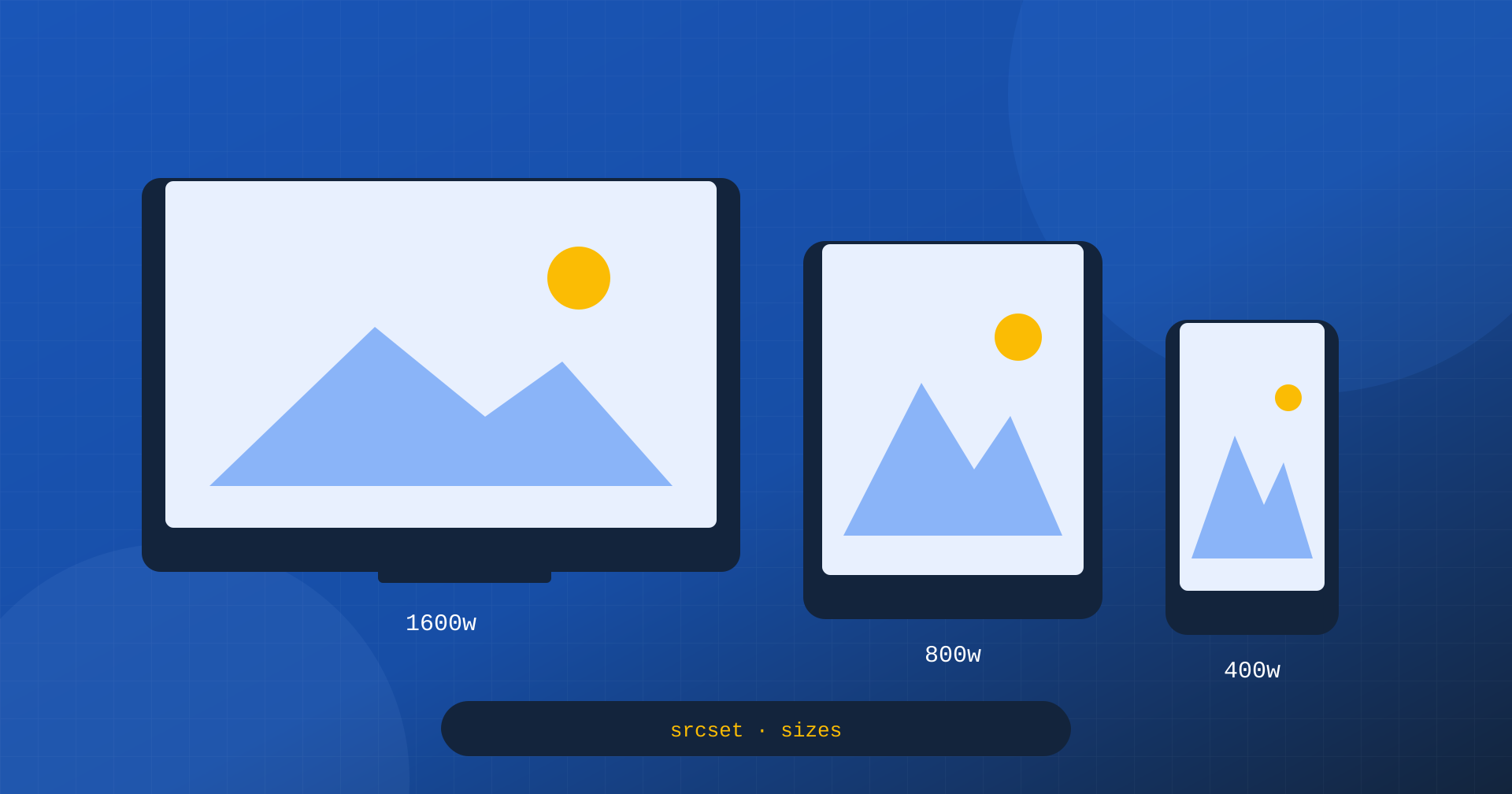
The same page is viewed on screens 360 pixels wide and on 2560 monitors, on phones with triple pixel density and on old laptops with standard density. If every visitor receives the same image, someone is penalized: whoever is on a smartphone downloads a file designed for a monitor, with useless megabytes on a mobile network; whoever has a high-density screen, if the image is small, sees a blurry result. The solution has existed for years and is supported by all browsers: responsive images, with the srcset and sizes attributes.
They are simple attributes to write and easy to get wrong. sizes especially, which tells the browser how large the image will be on the page, is often left at its default value or filled in roughly, with the result that the browser downloads images much larger than necessary. In this article we look at how they work, how the browser chooses, what the most common mistakes are, when to use the picture element and how to handle all this in WordPress.
srcset: the available variants
The srcset attribute lists the available versions of the same image, each with its own real width in pixels, indicated with the w suffix. The browser doesn’t need to download them to know how large they are: it reads it from the attribute, and chooses which one to download.
<img src="/media/scarpa-800.webp"
	srcset="/media/scarpa-400.webp 400w,
	        /media/scarpa-800.webp 800w,
	        /media/scarpa-1200.webp 1200w,
	        /media/scarpa-1600.webp 1600w"
	sizes="(min-width: 1024px) 400px, 100vw"
	width="1600" height="1200" alt="Trail running shoe, side view">
The src attribute remains as a fallback for clients that don’t know srcset, and the width and height attributes still serve to reserve space and prevent layout shifts, as explained in the article on CLS: they indicate the proportions, not the final size.
sizes: how large the image will be
To choose, the browser needs to know how much space the image will occupy on the page. But when it reads the HTML, and starts downloading images, it has not yet calculated the layout: it doesn’t know whether the image will take up the full width, half or a third. The sizes attribute tells it in advance, with a series of conditions on screen width and the corresponding size. In the example: on screens at least 1024 pixels wide the image occupies 400 pixels; otherwise it occupies the full width, 100vw.
With this information the calculation is simple: the browser takes the size indicated by sizes, multiplies it by the screen density, that is how many physical pixels correspond to one CSS pixel, and picks the smallest variant that covers the result.
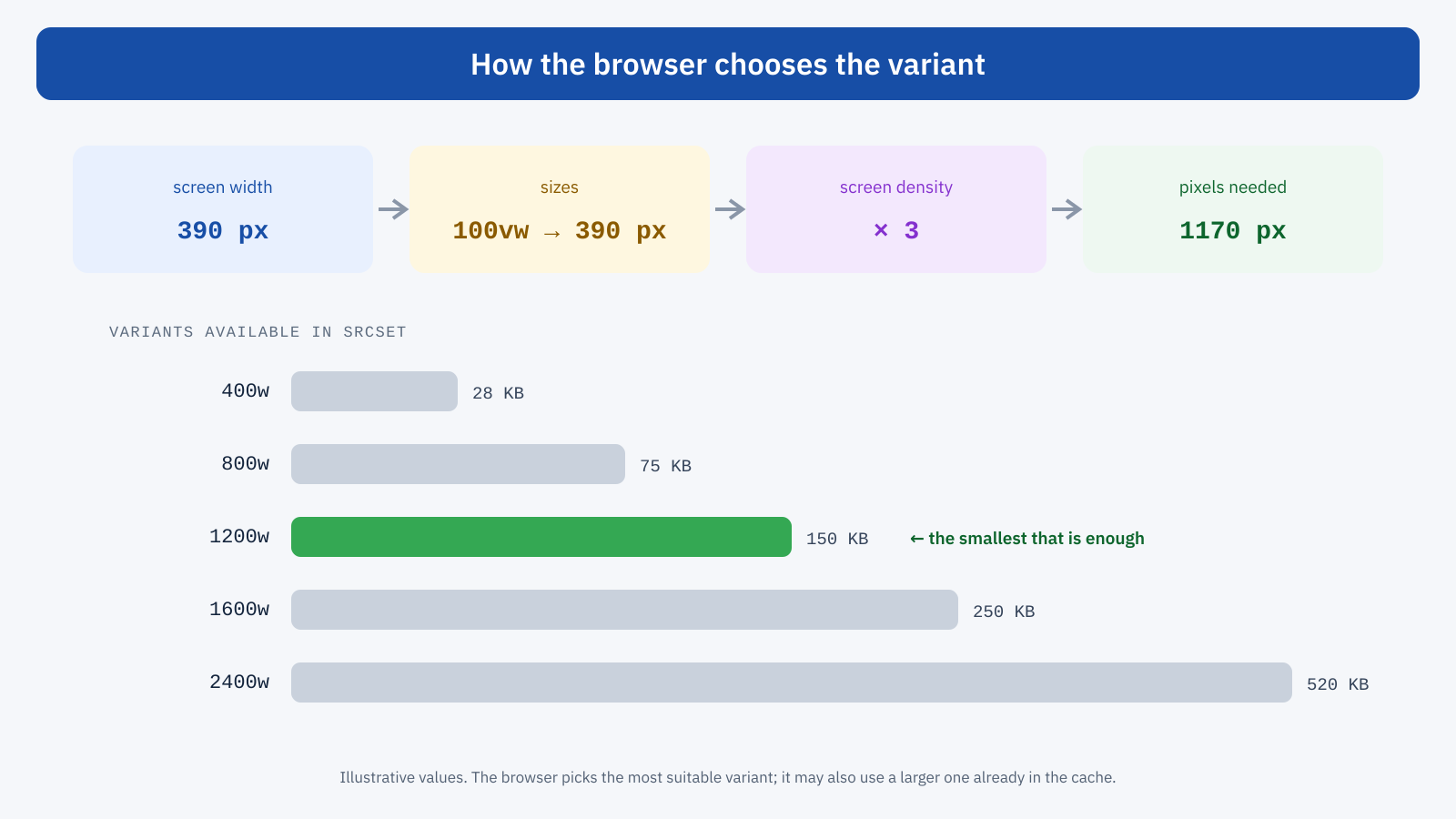
The browser has some freedom in this choice: it may prefer a variant already in the cache even if larger, and under some conditions it may take connection quality into account. But the principle is always the same, and the quality of the choice depends entirely on the correctness of sizes.
The costliest mistake
The default value of sizes, when missing, is 100vw: the browser assumes the image takes up the full width of the screen. For a full-page hero image it is correct; for an image in a three-column product grid, in a sidebar or a thumbnail, it is wrong by a factor of three, four, ten. The browser downloads enormous variants for small spaces, and the site looks optimized, because it has srcset, while it isn’t.
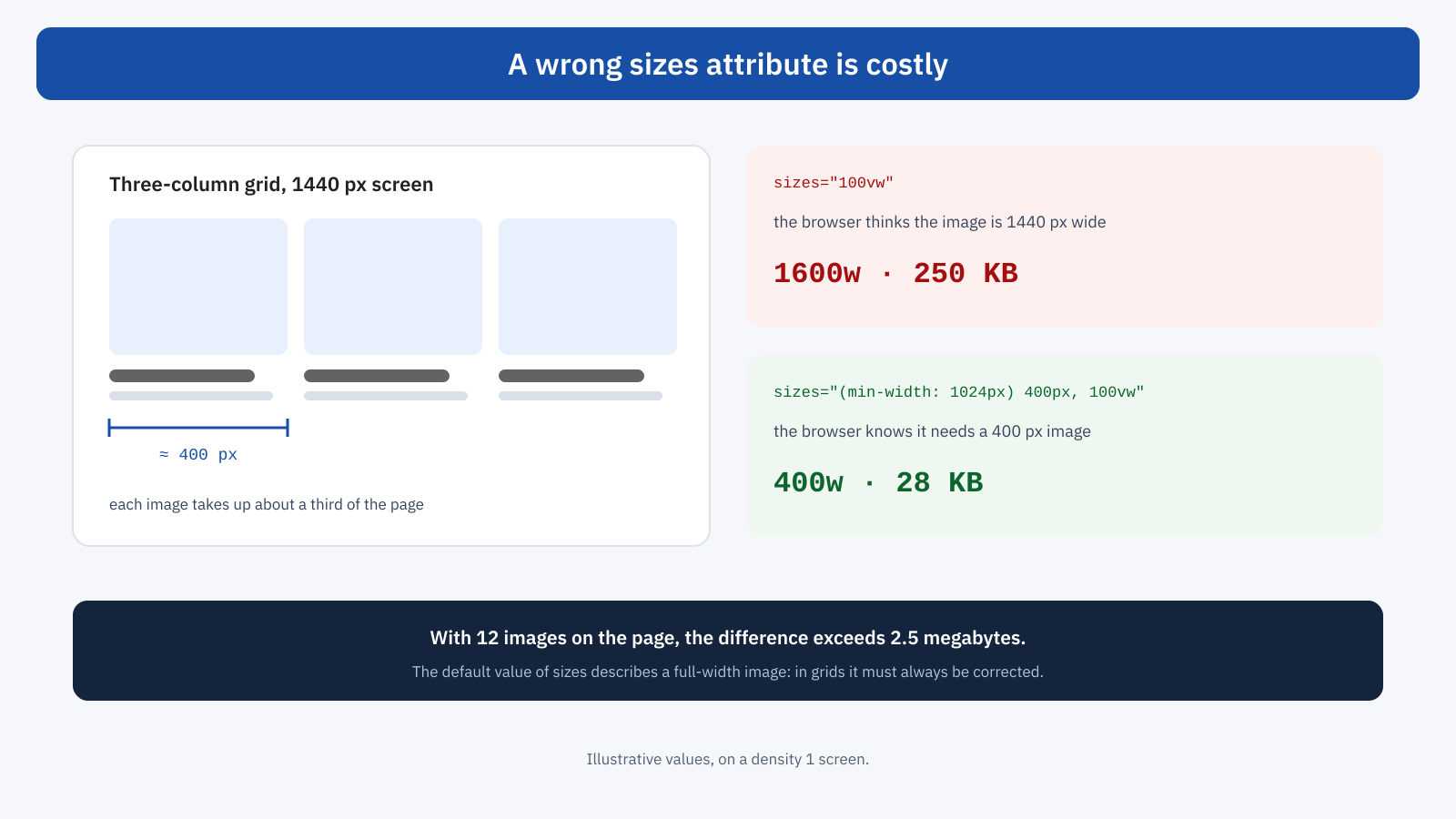
The right value is worked out from the page’s CSS: for each range of screen width, how wide the image is. Absolute precision isn’t needed: an overestimate of a few tens of pixels is harmless, an error of an order of magnitude is not. The calc() function lets you express widths that depend on margins and spacing, for example calc((100vw - 64px) / 3) for three columns with side margins.
<!-- Grid: 1 column on mobile, 2 on tablet, 3 on desktop with a maximum container of 1200px -->
sizes="(min-width: 1240px) 380px,
       (min-width: 768px) calc((100vw - 64px) / 2),
       calc(100vw - 32px)"
Which variants to generate
Variants should be chosen according to the site’s real layouts. For an image that can occupy from 360 to 1200 CSS pixels, on screens with density up to 3, the useful sizes range from about 400 to 2400 real pixels. A step of 30 to 50 percent between one variant and the next is a good compromise: steps that are too small multiply the files with no benefit, steps that are too large force the browser to download variants much larger than necessary.
Beyond a certain density the visual gain becomes hard to perceive, while the weight keeps growing. Many sites, for this reason, cap the effective density at 2, not generating variants beyond twice the maximum display size: on a density 3 screen the image remains perfectly sharp to the eye, with a noticeably lighter file.
Density descriptors
For images that are always the same size, such as a logo or an icon, there is a simpler form: instead of widths, srcset lists variants by density, with the x suffix, and sizes isn’t needed.
<img src="/media/logo-200.png"
	srcset="/media/logo-200.png 1x, /media/logo-400.png 2x"
	width="200" height="60" alt="Company logo">
For logos and icons, though, the best choice is often the SVG vector format, which stays sharp at any density with a single lightweight file.
The picture element: formats and art direction
srcset and sizes offer the browser versions of different sizes of the same image, and leave the choice to it. The picture element is for when the choice must follow precise rules. The first case is format: with several source elements, each with its own type, the browser uses the first format it supports, for example AVIF, then WebP, then JPEG, as we saw in the article on WebP and AVIF formats. The second is art direction: on mobile you want a different image, for example a vertical crop of the subject instead of the panorama used on desktop.
<picture>
	<!-- Vertical crop on mobile -->
	<source media="(max-width: 767px)"
		srcset="/media/hero-verticale-600.avif 600w, /media/hero-verticale-900.avif 900w"
		sizes="100vw" type="image/avif">
	<!-- Panorama on wider screens -->
	<source srcset="/media/hero-1200.avif 1200w, /media/hero-2000.avif 2000w"
		sizes="100vw" type="image/avif">
	<img src="/media/hero-1200.jpg" width="2000" height="900"
		alt="Downtown shop at sunset" fetchpriority="high">
</picture>
With art direction the proportions change between variants, and to avoid layout shifts the source elements can also specify width and height, supported by modern browsers.
The responsive LCP image
For the page’s main image, which is often the LCP element, the general rules apply: no deferred loading, fetchpriority="high", variants in the modern format. If the image is discovered late, for example because it is a background defined in the CSS, a preload must report the same variants and the same size rule, with the imagesrcset and imagesizes attributes, otherwise the browser risks downloading one variant and then using another, as explained in the article on preload, preconnect and fetchpriority.
How WordPress behaves
WordPress automatically generates several sizes of every uploaded image and, since version 4.4, adds srcset and sizes to images in content. The sizes generated depend on those registered by the core and the theme; themes can add others with add_image_size(). The core also automatically scales down images uploaded above a certain size threshold, keeping the original.
The weak point is precisely sizes. WordPress’s default value assumes the image is as wide as its registered size or as the screen, if smaller: correct for images in the body of an article, often wrong for grids, columns and product cards. The wp_calculate_image_sizes filter lets you correct it according to context. For lazy-loaded images, since version 6.7 WordPress can use the auto value, which leaves it to the browser to calculate the real size after layout: an effective solution for below-the-fold images, supported by Chromium-based browsers.
// correct sizes for the theme's product grid thumbnails
add_filter(
	'wp_calculate_image_sizes',
	function ( $sizes, $size ) {
		if ( 'tema-griglia' === $size ) {
			return '(min-width: 1240px) 380px, (min-width: 768px) calc((100vw - 64px) / 2), calc(100vw - 32px)';
		}
		return $sizes;
	},
	10,
	2
);
How to check
The most direct check is done in the browser. In DevTools, when you select an image, the currentSrc property shows which variant was chosen, and the panel shows the size at which the image is displayed and that of the file. If the file is twice as wide or more than the displayed space multiplied by the screen density, sizes is probably wrong. It is worth repeating the check while simulating different screens, because the error often affects only some width ranges.
Lighthouse flags oversized images with a dedicated warning, indicating the possible savings. In the Network panel, sorting by size the images of a category page or an article with many photos, you can immediately see whether the weight is reasonable for what the user sees. Pages with many images, like the online store catalogs discussed in the article on Core Web Vitals for WooCommerce, are where the mistake costs the most.
An example
A furniture store has category pages with 24 products in a four-column grid on desktop and a two-column grid on mobile. The theme registers a thumbnail size of 800 pixels and leaves WordPress with the default sizes value, which for that size indicates up to 800 pixels. On a smartphone 390 pixels wide, with density 3, the browser assumes the thumbnail takes up the whole screen and looks for 1170 real pixels, downloading the largest variant available, while each thumbnail occupies about 180 CSS pixels, that is 540 real ones. On desktop, where each thumbnail occupies about 280 pixels and the screen has density 1, it again downloads the 800 pixel variant: almost three times what is needed, for 24 images.
With a filter that describes the real grid, 280 pixels on desktop and half the screen minus margins on mobile, and with an additional 300 pixel variant, the category page on desktop goes from 2.1 megabytes of images to about 700 kilobytes, and on mobile too the weight drops noticeably. No image is less sharp, because each is downloaded at exactly the resolution at which it is displayed. It is the kind of fix you don’t see in a test of the home page alone, and which on a catalog with thousands of products and many category visits makes a noticeable difference both for users and for server traffic.
In short
Responsive images let every visitor download the variant suited to their screen. srcset lists the variants with their width, sizes says how large the image will be on the page, and the browser multiplies by screen density and picks the smallest one that is enough. The picture element adds control over formats and the ability to change the crop depending on the screen.
The most frequent and costliest mistake is a sizes left at its default value for images that don’t take up the full width: the site looks optimized, but downloads files many times larger than necessary. Correcting it based on the real CSS, generating variants suited to the site’s layouts and checking in the browser which variant is chosen are simple fixes that, on image-heavy pages, save megabytes on every visit.
