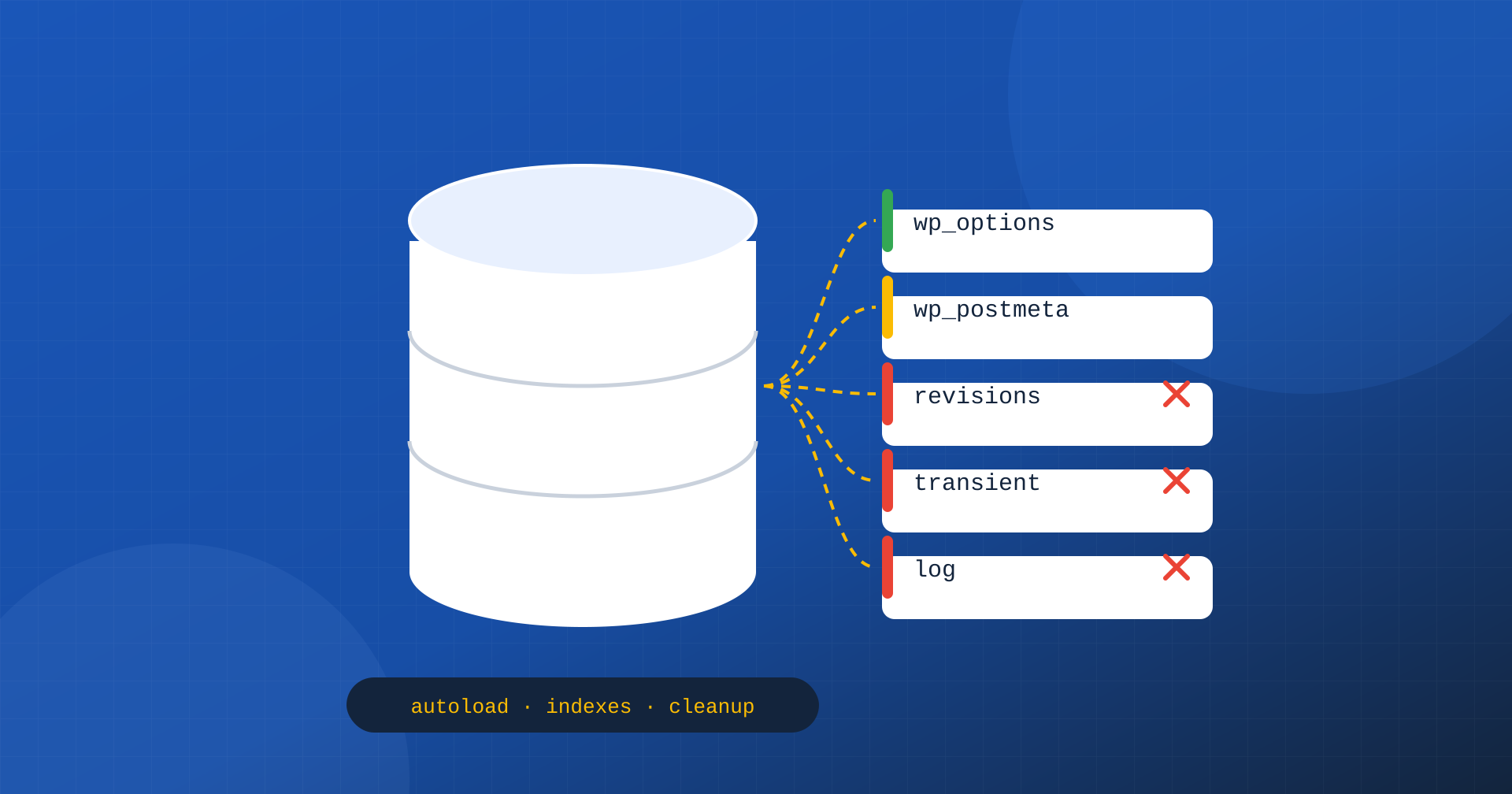
When people think about the speed of a WordPress site, the database often stays in the background. Yet every page that is not served from the page cache goes through it: WordPress reads settings, content, metadata, menus, plugin data, and every read has a cost. On a freshly installed site this cost is negligible. After a few years of activity, with dozens of plugins installed and removed, thousands of revisions, sessions, logs and temporary data never deleted, the database can become the main reason why cart, account area, search and dashboard respond slowly.
In this article we look at the most common causes of a slow database in WordPress, how to find them with tools within everyone’s reach and how to intervene safely, without relying on aggressive cleanups that risk deleting important data.
When the database matters
The database affects the TTFB of all requests WordPress has to process: pages for logged-in users, store cart and checkout, internal searches, AJAX and REST API calls, the admin dashboard, scheduled operations. Pages served from the page cache do not touch it, so a brochure website fully cached can have a neglected database with no visible consequences for visitors. An online store, a site with registered users or with many dynamic features, on the other hand, depends on it at every step, as we saw when discussing Core Web Vitals for WooCommerce.
Autoloaded options
The wp_options table holds the settings of the site, theme and plugins. Some options are flagged for autoloading: WordPress reads them all together, with a single query, at the start of every request. It is an efficient mechanism as long as the options are few and small. The problem arises when their total size grows to several megabytes: every uncached request has to read them, transfer them from MySQL to PHP and decode them, even if it will use only a tiny part.
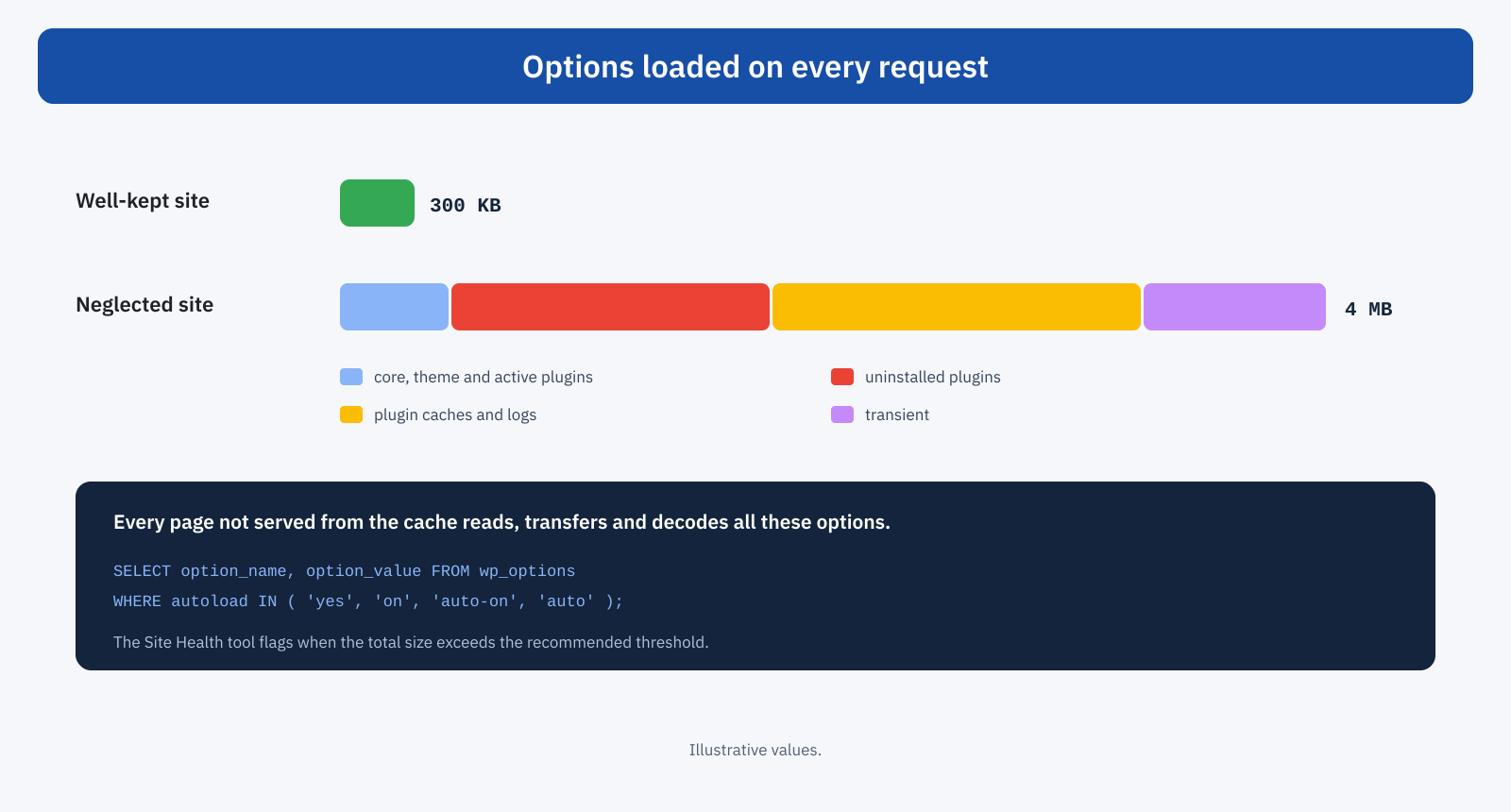
There are three typical causes. Uninstalled plugins that left their settings behind, sometimes very bulky. Active plugins that use options as a cache or a log, saving data that grows over time. Transients, meaning temporary data with an expiry, which without an object cache are saved in the same table. The Site Health tool, in recent versions of WordPress, flags when the total size of autoloaded options exceeds a recommended threshold; for a more precise analysis, a query lists the largest options:
-- The 20 largest autoloaded options
SELECT option_name, ROUND( LENGTH( option_value ) / 1024 ) AS kb
FROM wp_options
WHERE autoload IN ( 'yes', 'on', 'auto-on', 'auto' )
ORDER BY LENGTH( option_value ) DESC
LIMIT 20;
From the option name you can almost always trace the plugin that created it. Options of plugins no longer installed can be deleted, after a backup; those of active but rarely used plugins can be excluded from autoloading, and WordPress offers dedicated functions to change the setting without touching the value.
// Exclude a large, rarely used option from autoloading
wp_set_option_autoload( 'plugin_statistiche_cache', false );
Metadata and slow queries
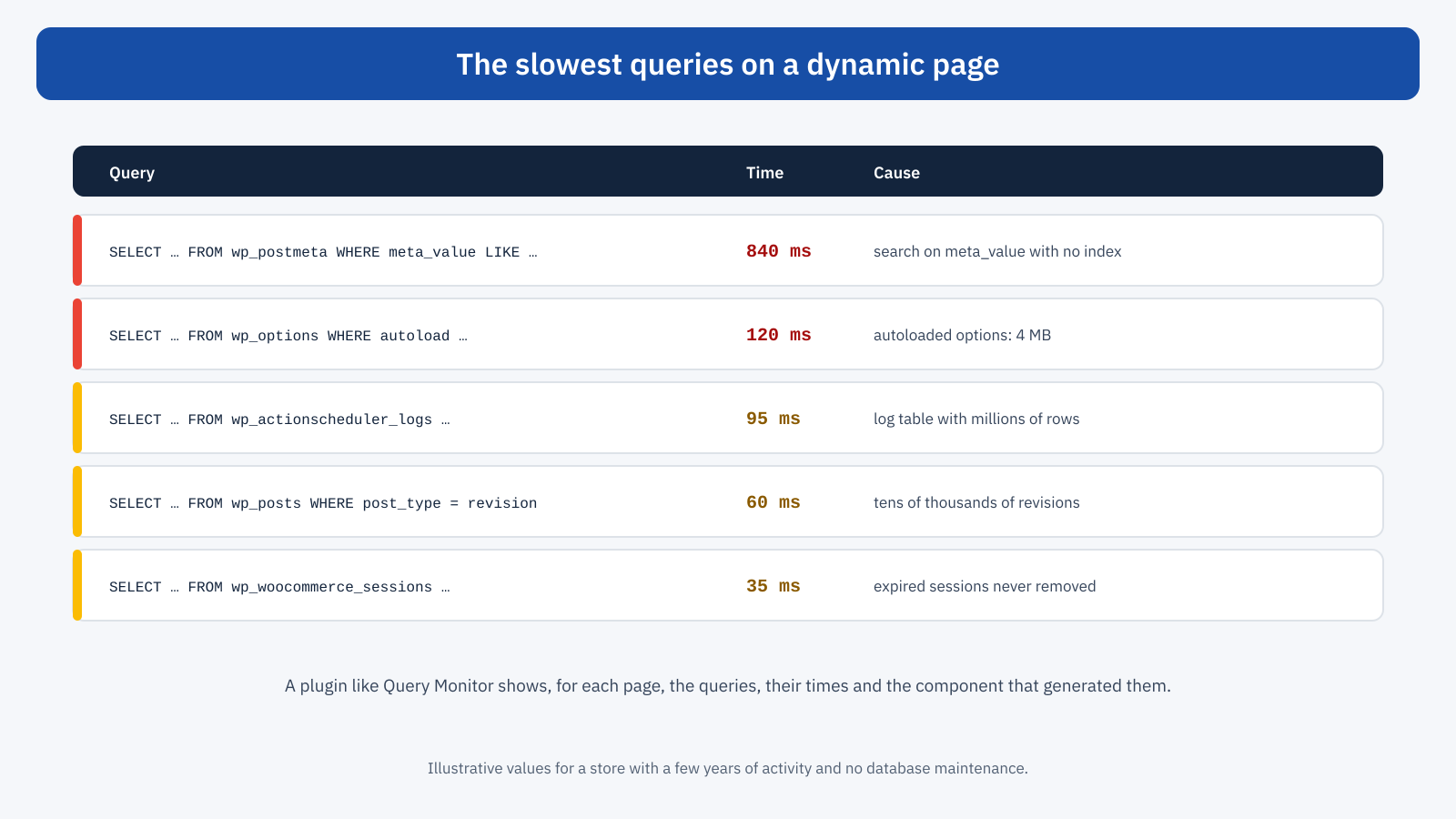
WordPress keeps a lot of additional information about posts, products, users and orders in metadata tables, such as wp_postmeta, where each piece of information is a row with a key and a value. It is a flexible model, which lets any plugin add fields without modifying the tables, but it lends itself poorly to searches: the values column is not indexed, and a search that filters by value, such as “all products with a certain attribute” or “all events after a certain date”, forces the database to scan an enormous number of rows. On a catalog with tens of thousands of products, the metadata table can count millions of rows, and a single query of this kind can take hundreds of milliseconds.
The solutions depend on the case. Some dedicated plugins add more effective indexes to WordPress metadata tables, with significant benefits on large sites. WooCommerce has moved orders into its own tables, optimized for searches, with high-performance order storage. For custom features, it is best to avoid searches by metadata value when there is an alternative, such as a taxonomy for attributes that are filtered on often.
Revisions, transients, sessions and logs
Other tables grow silently. Revisions: WordPress keeps a copy of every save of posts and pages, and on a publishing site active for years they can reach tens of thousands, with their metadata. Limiting their number is easy, and the oldest revisions can be removed:
// wp-config.php: keep at most 10 revisions per post
define( 'WP_POST_REVISIONS', 10 );
Expired transients, without an object cache, stay in the options table until someone reads them: on sites with many plugins thousands can pile up. Online store sessions, logs from security, email and statistics plugins, and scheduled operations tables, such as those of the Action Scheduler used by WooCommerce and many other plugins, can reach millions of rows if nobody sets a retention period. Each of these tables slows down the queries that touch it and weighs on backups and restores.
With WP-CLI, WordPress’s command-line tool, some cleanups run with a single command:
# Delete expired transients
wp transient delete --expired

# Table sizes, to find those that have grown too much
wp db size --tables --size_format=mb
How to diagnose
The most useful tool for understanding what happens in the database is Query Monitor, a free plugin that shows, for each page visited by an administrator, all the queries run, their time, the component that generated them, meaning core, theme or plugin, and duplicate queries. Sorting by time you find the slowest queries in seconds; grouping by component you find out which plugin generates the most work. Use it on the dynamic pages that matter, such as the cart or a search, not on the cached home page.
On the server, the MySQL or MariaDB slow query log, if the hosting lets you enable it, collects all queries that exceed a certain duration, including those run by scheduled operations and background calls that Query Monitor does not see. Finally, table sizes and row counts, visible with WP-CLI or from the database management panel, show where the weight has built up.
Cleaning up safely
There are plugins that promise to optimize the database in one click. Some do a good job on the safest items, such as revisions, expired transients and spam comments; others offer to delete “orphan” tables and options using approximate criteria, with the risk of deleting data from plugins still in use. A few rules avoid nasty surprises.
- Backup first. A full, verified copy of the database before any deletion.
- Measure first. Use Query Monitor and table sizes to find where the problem really is, instead of cleaning everything at random.
- One thing at a time. Work on one table or group of options, check that the site works, measure the effect, then move on to the next.
- Prefer settings to deletions. Retention periods for logs and scheduled operations, a cap on revisions, automatic session cleanup: preventing growth is better than cleaning periodically.
- Try on a copy first. For the most invasive operations, such as adding indexes or converting tables, a staging environment avoids discovering problems in production.
The role of the server and the object cache
Not everything depends on the content of the database. The version of MySQL or MariaDB, the memory assigned to the database’s internal cache and the table engine affect performance: tables with the old MyISAM engine, still present on some dated sites, handle concurrent access worse and should be converted to the InnoDB engine, now the standard. On managed hosting these aspects are usually looked after by the provider; on your own servers they must be checked.
An object cache such as Redis reduces the number of repeated queries and moves transients out of the options table, but it does not fix queries that are slow by nature, such as metadata searches, nor does it make autoloaded options light: it stores them, but still has to transfer and decode them on every request. Database cleanup and object cache are complementary, not alternatives.
An example
An online store active for six years has a cart that responds in 1.4 seconds and an admin dashboard so slow it discourages the people who manage orders. The Site Health tool flags autoloaded options of over 5 megabytes; Query Monitor shows, on the cart page, a query from a filter plugin that searches product metadata for over half a second, and table sizes reveal an Action Scheduler log with four million rows and a sessions table with hundreds of thousands of expired sessions. The fix, run first on a copy of the site, removes the options of eleven uninstalled plugins, excludes from autoloading two options used only in the dashboard, sets a retention period of one month for the scheduled operations log, deletes expired sessions and adds indexes to the metadata tables. The cart drops below 500 milliseconds, the dashboard becomes smooth again and nightly backups take a third of the time.
Periodic maintenance
The database is not fixed once and for all. Every new plugin brings its own options and tables, every campaign generates sessions and orders, every update can change how data is saved. A check every few months, with the Site Health tool, table sizes and a round of Query Monitor on the main dynamic pages, lets you spot growth before it becomes a problem. When you uninstall a plugin, it is worth checking whether it offers an option to remove its own data, often off by default, and using it if you do not plan to reinstall it. It is a few minutes of work that avoids much more demanding interventions years later.
In short
The WordPress database affects all requests that do not go through the page cache: carts, account areas, searches, APIs and administration. Over time it gets heavier in predictable ways: autoloaded options growing to megabytes, metadata searches without adequate indexes, revisions, transients, sessions, logs and scheduled operations that nobody deletes.
Diagnosis is within everyone’s reach, with the Site Health tool, Query Monitor and a measurement of table sizes. Interventions should be done methodically, after a backup and one at a time, preferring settings that prevent growth to aggressive cleanups. Together with an object cache and a well-configured server, a well-kept database brings dynamic pages back to response times that users no longer notice.
